
You can add an iPhone notification video in CapCut by creating the notification scene separately, exporting it as MP4, and importing that file into your edit. This is often simpler than building multiple notification cards and entrance animations from scratch inside a timeline.
A tool such as Mocknotif can generate an animated iPhone lock-screen scene with fictional notifications. CapCut is then where you position that scene relative to your footage, captions, and sound. Think of the two tools as separate steps: make the phone scene, then edit the story.
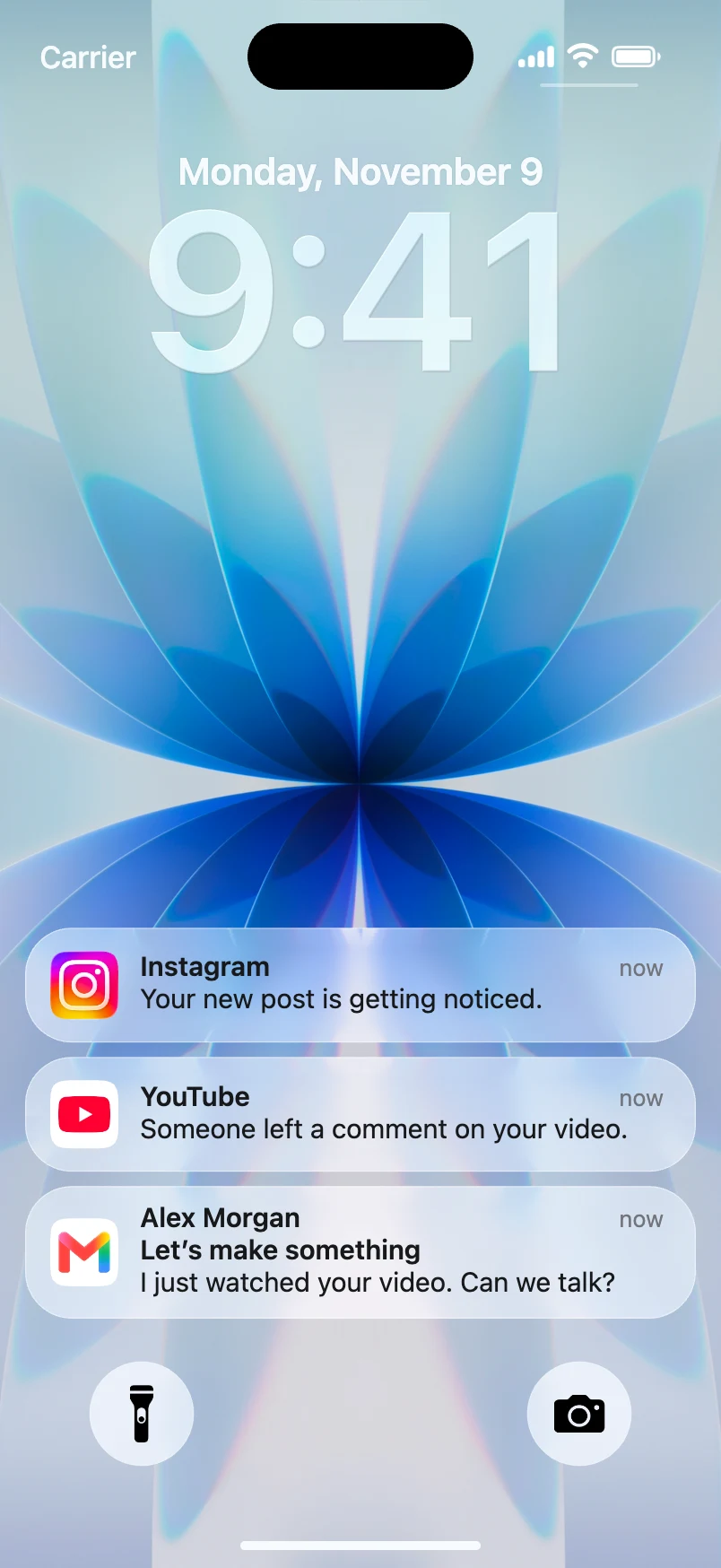
Prepare a notification clip for editing
Before opening CapCut, decide how the scene should fit into your video. There are two common approaches:
| Approach | Result | Best for |
|---|---|---|
| Full-screen insert | The lock-screen scene replaces the footage for a moment | POV stories, suspense, tutorials |
| Picture-in-picture composition | The lock-screen video sits inside a designed layout or phone frame | Explainers, reaction videos, app demos |
Do not assume the generated MP4 is a transparent-background notification overlay. A complete lock-screen clip can be cropped or framed in CapCut, but transparent alert cards are a different asset type.
In Mocknotif, write the sender and message, choose a wallpaper, add the notifications in story order, and preview their arrival timing. Then export MP4. A short script such as "Where are you?" followed by "Check the group chat" works well as a timing test.
Import and position the MP4 in CapCut
CapCut's exact labels differ between desktop, mobile, and software versions, but the editing sequence is consistent:
- Create or open your CapCut project. If you are making a vertical short, start with a 9:16 canvas.
- Use CapCut's media import option to bring in the MP4 downloaded from Mocknotif.
- Drag or insert the clip onto the timeline at the moment the viewer should see the phone.
- Adjust the clip's scale and position. For a full-screen insert, avoid cropping off the notification cards or clock.
- Trim the start and end to remove unnecessary waiting time. Keep enough hold time for the audience to read the final alert.
- Add reaction footage, captions, or sound on separate tracks. Watch a full-speed preview before exporting the finished video.
If you use picture-in-picture, place the lock-screen video above your primary footage and crop or mask it deliberately. Make sure viewers can tell it is a simulated screen used for a story or demonstration.
Get the timing right on the timeline
A useful editing pattern is reaction → notification → reaction. Show a person looking at their phone, cut to the lock screen as the alert arrives, then cut back to their expression. This makes the notification feel part of the scene instead of an unrelated graphic.
Check the clip at normal viewing size. A tiny picture-in-picture version may make the message unreadable even if it looks sharp in the editor. Shorten the text in Mocknotif and re-export rather than enlarging a densely written card.
For voiceover-heavy tutorials, pause the narrative slightly before the notification lands. A timed alert needs visual attention; trying to deliver a long spoken explanation at the same moment can overload viewers.
Avoid adding a second animated entrance effect to the entire clip unless you want the whole phone frame to move. Mocknotif's notification arrivals already provide motion inside the scene. Doubling the animation often makes the result feel artificial.
If your intended output is a transparent notification-only overlay, confirm you have the right asset type first. Do not promise that importing a regular MP4 will remove its background automatically.
Export and check before posting
Export your finished video in a format supported by your destination platform. Rewatch it on a phone, looking for two specific problems: text blocked by social-app interface controls, and an alert that appears too late or too briefly.
A PNG from the same notification scene may be useful for a thumbnail or explanatory slide. For broader storytelling advice, see the animated iPhone notifications guide and our TikTok notification hook examples.
Frequently asked questions
Can CapCut create the notification animation itself?
You can manually animate text and image layers in a video editor, but generating a lock-screen scene first reduces the number of elements you have to arrange yourself.
Does the MP4 include the iPhone lock screen?
This workflow is based on a complete simulated lock-screen clip. It should not be described as a transparent alert-only overlay.
Do I need a CapCut subscription to import the clip?
Basic media import is a standard editing operation, but export options can vary by CapCut version, device, and subscription. Check CapCut's current terms and options in your installation.