
A fake iPhone lock screen for a short film lets you show a character receiving an important message without using a real phone account or another actor's private texts. The finished asset can appear as a full-screen insert, a cutaway in an edit, or a designed phone-screen graphic.
For fake text notifications for film, a moving lock-screen scene is often more useful than a static screenshot. Mocknotif can create a simulated iPhone lock screen with fictional notifications arriving in sequence, which you can export as an MP4 for the edit or as a PNG for storyboards.
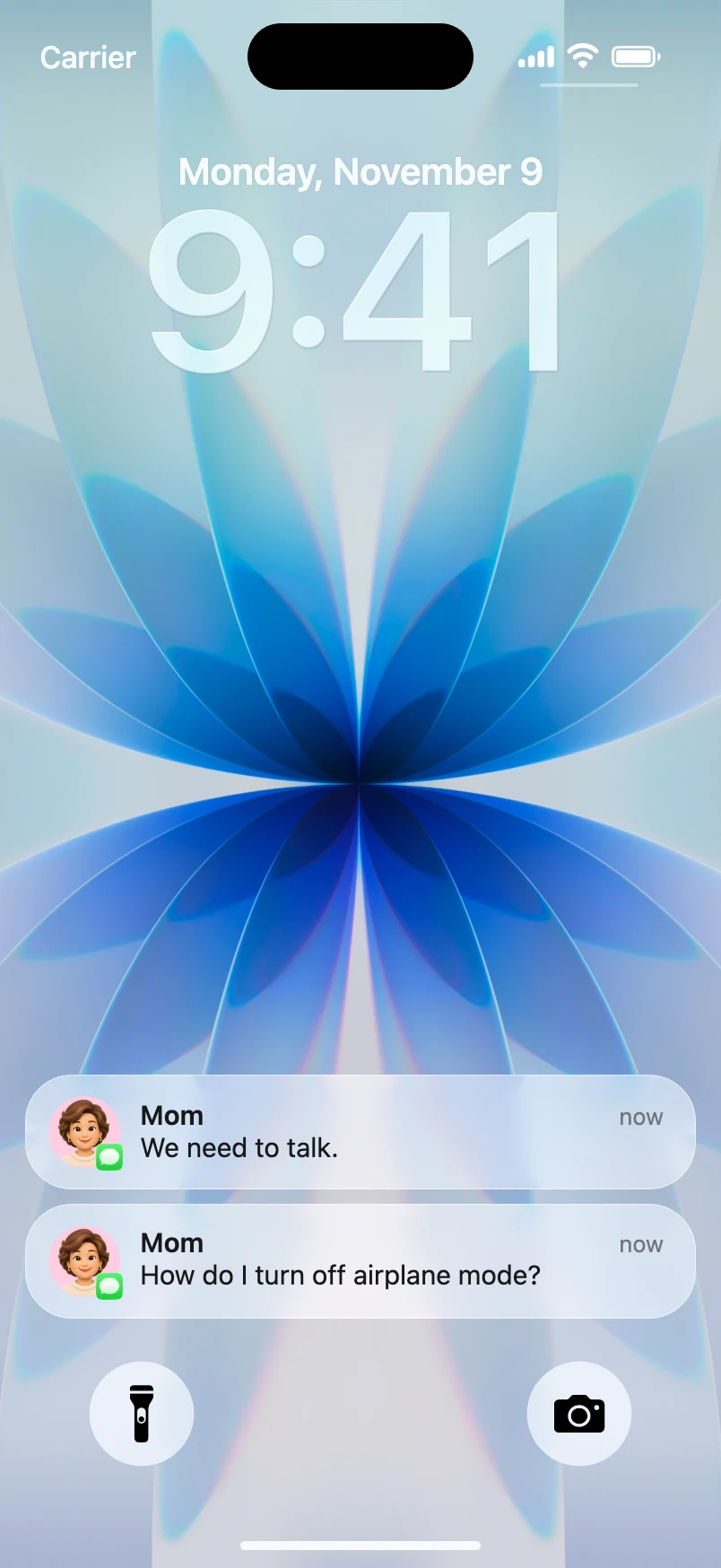
Plan the phone insert with the scene
Imagine a three-shot thriller scene:
- Shot A: The character hears a buzz but keeps working.
- Shot B: A phone-screen insert reveals: "Your door is unlocked."
- Shot C: The character looks toward the empty hallway.
The notification is not simply decoration; it moves the story forward. Write the exact text before you build the screen. If the message is the twist, the audience must be able to read it in the time available.
Document the clock, date, wallpaper, sender spelling, and notification order for continuity. If you make a second version after the edit changes, those details should remain consistent. A surprisingly common mistake is to change the time displayed on the phone between two consecutive shots.
Make the fictional screen asset
- Choose a generic or licensed wallpaper that matches the scene's mood and does not distract from the text.
- Open Mocknotif and create the iPhone-style lock-screen appearance.
- Add fictional senders and messages from the script. Avoid using a real person's name, number, or private correspondence.
- Set the order of incoming alerts to match the planned shot timing.
- Preview the sequence against the approximate duration of Shot B. Can a first-time viewer finish reading before the cut?
- Export an MP4 for the edit, plus a PNG if you need a still reference for production notes.
If you have actors or a real phone in frame, remember that this is a screen asset, not a device-tracking solution. Replacing a moving physical display may require masking, corner pinning, or compositing work in your video editor.
Edit for readability and continuity
Match the visual grammar of the film. A dramatic insert may need a slower arrival and a longer hold than a comedic social clip. Let the scene determine the timing.
Maintain screen continuity. Keep the date, clock, wallpaper, and notification stack consistent with shots before and after the insert. Save a reference frame for the editor.
Watch the crop. If you zoom into the screen in post-production, make sure the sender and the crucial line stay visible. Avoid excessive blur or glare effects that make the plot information impossible to read.
Separate storytelling from proof. If you publish the insert as a standalone clip or teaser, label fictional messages when viewers could mistake them for authentic personal communications.
Use appropriate rights. A recognizable app visual can be a story prop, but that does not mean you have permission to reuse another person's portrait, copyrighted wallpaper, or brand endorsement. Use assets you own or have licensed.
For a faster social-first approach, read how to make an iMessage notification video. If you're taking the screen into an editing timeline, our CapCut guide explains the basic import workflow.
Decide between PNG, MP4, and filming a real device
Use PNG when the phone screen never changes. Use MP4 when the precise arrival of a notification matters. Use an actual iPhone when the scene needs the actor to interact with system controls or a real app—not just display a scripted alert.
This division keeps the production simple. An animated mockup solves a very specific film problem: making a fictional notification arrive on cue.
Frequently asked questions
Can I use a mockup instead of filming a phone?
Yes, for a screen insert or designed visual. Physical phone interaction and perspective tracking require additional filming or editing work.
Can I use real messages for realism?
For public projects, write fictional messages or obtain explicit permission before using private correspondence. Reusing real personal communications can create privacy and consent problems.
Does the tool simulate the whole iPhone operating system?
No. The workflow described here creates a lock-screen notification scene, not an interactive recreation of iOS.