
An animated iPhone notification is a short visual sequence in which one or more fictional alerts appear on a simulated lock screen. You might use one in a story video, a product walkthrough, or a presentation. This iPhone lock screen animation uses an incoming notification effect to turn a still layout into a short scene. The key difference from a screenshot is timing: the audience sees when a message arrives, not just the final stack of messages.
You do not need to text a second phone and record the screen. A browser-based notification animation generator such as Mocknotif lets you write the notifications, arrange their arrival order, preview the scene, and export an MP4 or a still PNG. The fake iPhone notification video is a visual mockup, not a notification sent to a real device.
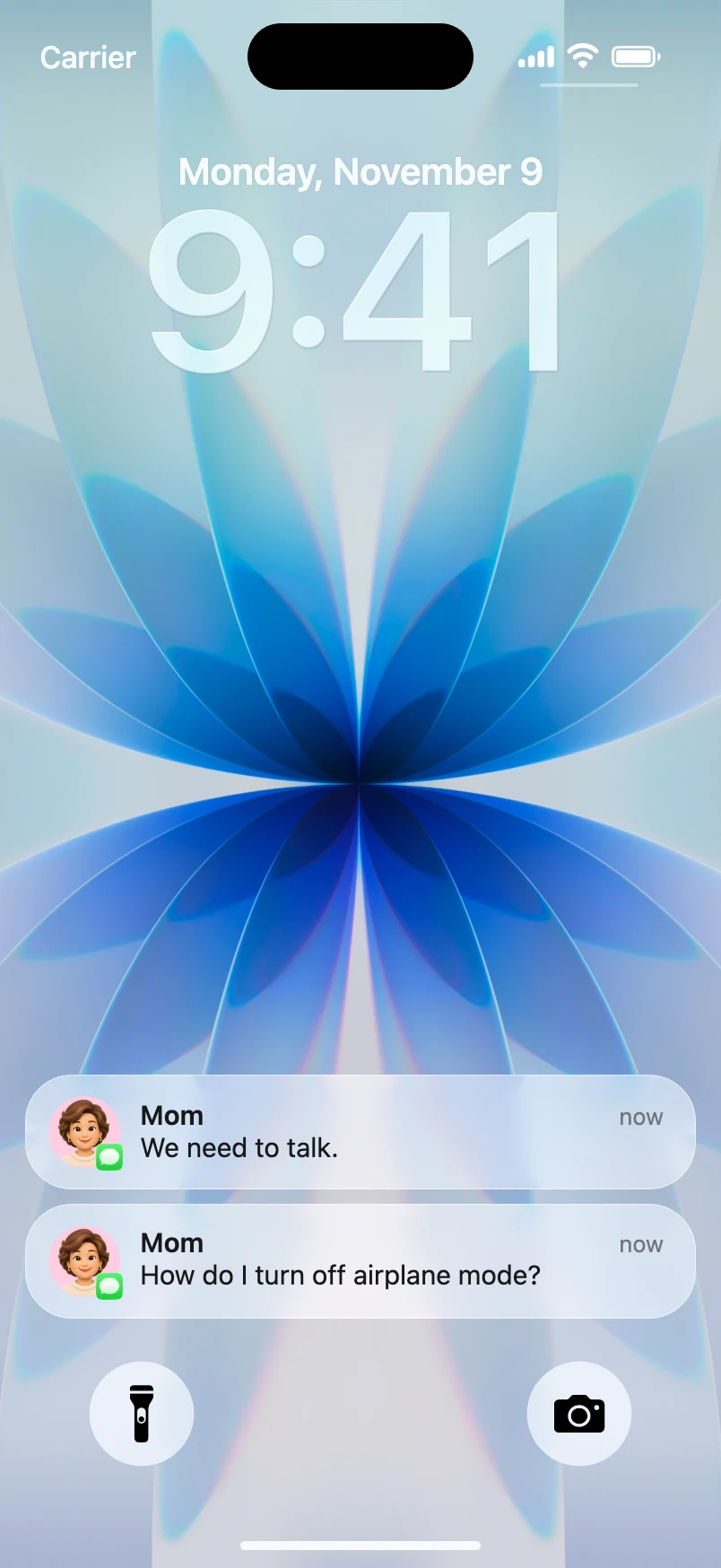
Plan the notification sequence before editing
A convincing notification scene has a reason for each alert. Rather than dropping five unrelated cards onto a screen, write a tiny story with a beginning, turn, and payoff.
Consider a fictional travel story:
| Arrival | App style | Sender | Notification text | Story function |
|---|---|---|---|---|
| 0.8 sec | Messages | Maya | "Did you check the gate?" | Establish context |
| 2.4 sec | Messages | Maya | "They changed it again." | Raise tension |
| 4.2 sec | Airline Updates | "Your departure time has changed" | Reveal the problem |
These are suggested editing times, not a claim about the tool's built-in presets. Aim for short, readable text and enough time for viewers to register each arrival. If the screen will eventually be viewed on a small phone, a sentence usually performs better than a paragraph.
Apple's real Lock Screen can display notifications as a count, stack, or list, depending on the user's settings. A simulated lock screen can reproduce the appearance of a notification scene, but you should not promise it exactly matches every iPhone or iOS version. For reference, see Apple's notification display guide.
Create the animation in Mocknotif
- Open the Mocknotif notification editor in a desktop or mobile browser.
- Choose a lock screen background with enough contrast behind the notification cards. A restrained wallpaper keeps the text readable.
- Add the first fictional notification. Set the app style, sender/title, message, and displayed time where those fields are available.
- Add the remaining notifications. Use their order and timing controls to space the arrivals instead of displaying everything at once.
- Play the preview from the beginning. Check whether each card stays legible before the next one arrives.
- Export an MP4 for motion or a PNG when you only need the finished lock screen as an image.
Use invented senders and scenarios. A prop notification can look familiar without falsely claiming a real person or company sent it.
Make the result easier to watch
Give the first card a purpose. The first notification should establish the setting, not deliver the entire joke. Viewers need a moment to orient themselves before the surprise lands.
Vary the intervals. Two quick arrivals can imply urgency; a longer pause before the third can create suspense. Preview the sequence at normal playback speed, not only frame by frame.
Check the ending. If you plan to add a voice-over, leave room for a final hold on the complete stack. If the clip ends on the same frame as the final arrival, a viewer may miss it.
Keep names and icons legible. Read the preview at roughly the size it will appear in a Shorts or Reels feed. Decorative wallpapers are less important than the message.
Disclose fiction when context is ambiguous. For storytelling, comedy, or education, a caption such as "fictional notification mockup" prevents confusion. Never use a simulated alert as proof of a payment, purchase, or private conversation.
Export for a short-form video
For a vertical edit, start with a 9:16 project in your video editor. Import the MP4 as a clip; scale it to fill the frame without cropping off the notifications. Put your narration, reaction footage, or background music on separate tracks. The generated scene is a complete visual lock-screen clip; it is not the same as a transparent notification-only overlay.
If you need a static thumbnail, export a PNG of the most informative frame. Keep the text short enough to remain readable when the image is reduced to thumbnail size.
For platform-specific ideas, see how to use notification videos on TikTok and how to bring a notification clip into CapCut.
Frequently asked questions
Can I create multiple notifications in one video?
Yes, the animated-lock-screen workflow uses multiple fictional messages that appear in sequence. Review their order and spacing in the preview before exporting.
Do I need a real iPhone to record the alerts?
No. Mocknotif creates a visual simulation in the browser. It does not trigger an actual push notification on an iPhone.
Is an MP4 better than a PNG?
Choose MP4 when arrival timing is part of the story; choose PNG for a static slide, thumbnail, or storyboard. Check the current free-export watermark and upgrade options in the editor before using an export commercially.