
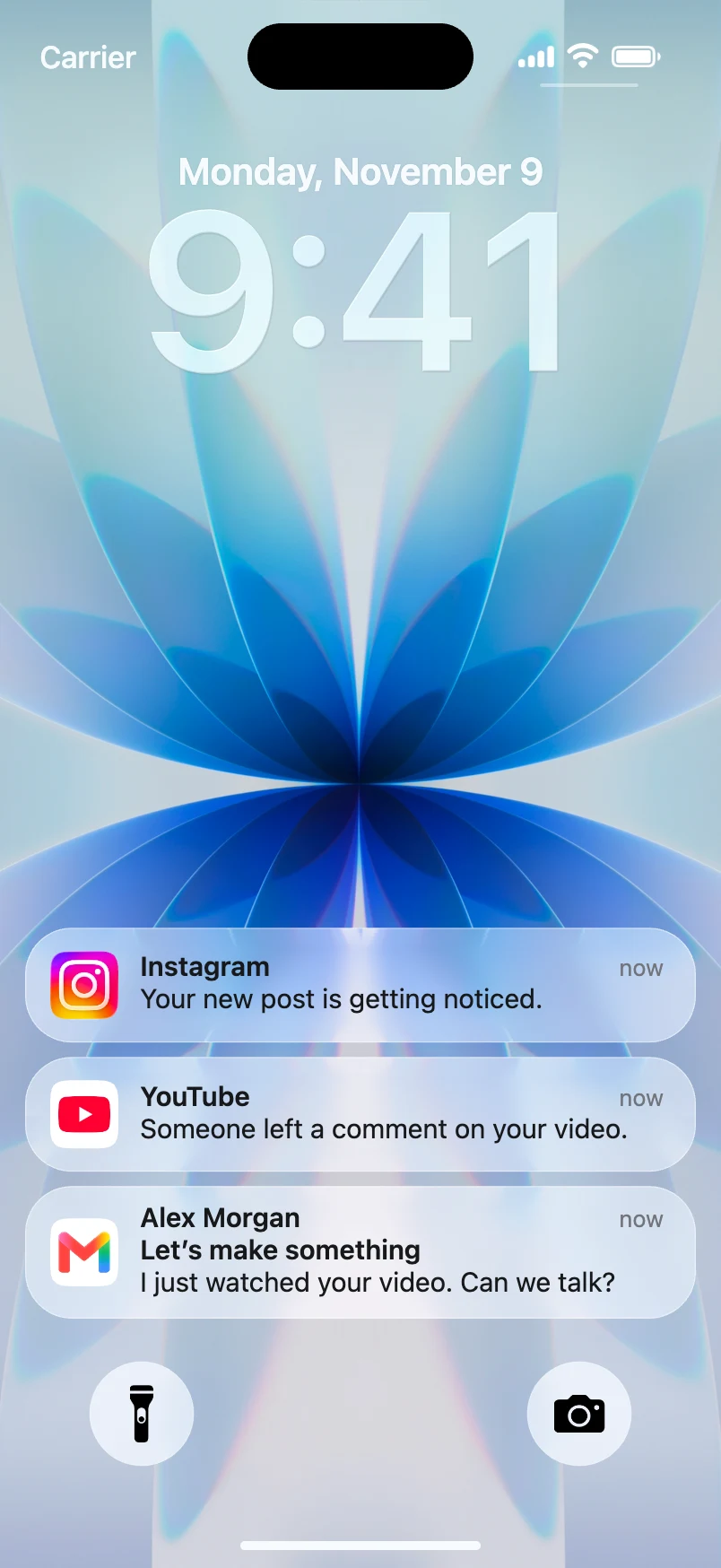
A TikTok notification animation—an iPhone notification video for TikTok—can start a story before anyone says a word. A lock screen appears, one unexpected notification arrives, and the viewer immediately wants to know what happens next. That makes the format useful for jokes, POV sketches, fictional drama, and app-centered storytelling.
The easiest production method is to build the notification scene first, export it as a video, and then edit the hook around it. Mocknotif lets you assemble fictional iPhone lock-screen notifications and export an animated MP4. You can then import that clip into your normal short-form video workflow.
Start with a hook, not a visual effect
A notification that says "Hey" is rarely interesting on its own. A notification that changes the story can earn a second look.
Try three fictional hook patterns:
- The impossible reminder: A calendar-style alert says, "Interview with your future self — 9:00 AM."
- The awkward interruption: A message arrives: "Please stop replying all."
- The escalating mystery: Two friends text normally, then a third alert says, "Why is your location moving?"
The first alert should be understandable within a glance. If you need six lines of text to explain the premise, cut the wording. Treat the arrival as a notification story hook; the rest of the TikTok supplies the payoff.
Create a short notification scene
- Write a one-sentence premise and decide what the audience should wonder after the first alert.
- Open the Mocknotif editor and choose a wallpaper that doesn't compete with the text.
- Add one fictional notification with a clear sender and short message.
- For a multi-part joke, add one or two additional cards and stagger their arrival.
- Preview the animation. If the key message disappears too quickly or arrives too late, adjust the scene.
- Export the vertical lock screen video as MP4 and create a TikTok edit around it.
A simple first test is a five- to eight-second sequence. That is an editing suggestion, not a platform requirement. Let your actual script dictate the duration.
Edit for mobile attention
Lead with the interesting line. Put the first readable alert near the start, not after a long logo intro. A notification is useful because it can communicate a premise without requiring sound.
Protect the phone UI from captions. TikTok overlays interface controls and captions around parts of the screen. Keep essential notification text away from the extreme edges when you place the exported clip in your video editor.
Use the arrival as a cut point. A well-timed switch from the fictional lock screen to a reaction shot can make the joke land. You don't have to keep the entire video on the mockup.
Test the silent version. Many viewers encounter short-form content without audio. If the notification story only works with a voiceover, consider adding a brief on-screen setup.
Don't turn satire into fake evidence. Label reenactments or fictional messages when necessary, and avoid making a viewer believe a real person sent the notification.
For an example of a more narrative format, read how to create an iMessage notification story. If you edit in CapCut, see the import-and-timing workflow.
Adapt the same idea for Reels and Shorts
You can reuse the concept across TikTok, Instagram Reels, and YouTube Shorts, but check each platform's current export and safe-area guidance. Start with a vertical project and inspect the final upload preview. What looks centered in your editing canvas may sit behind interface buttons in the app.
A second version can start with a close-up of the alert, while a third can start with an actor's reaction before showing the screen. That gives you several storytelling variations from one notification sequence.
Frequently asked questions
Do I need an actual incoming message to film this?
No. The notification is a visual mockup that you export as a video. It does not send a message to your device.
Should I export a PNG or MP4 for TikTok?
Use MP4 when the arrival animation matters. A PNG works if your edit only needs a freeze-frame or a thumbnail.
Can I use a notification clip as a transparent overlay?
The workflow described here exports an animated lock screen scene. It does not assume transparent-background notification cards. You can use the lock screen as a standalone clip or design your own compositing treatment in an editor.