
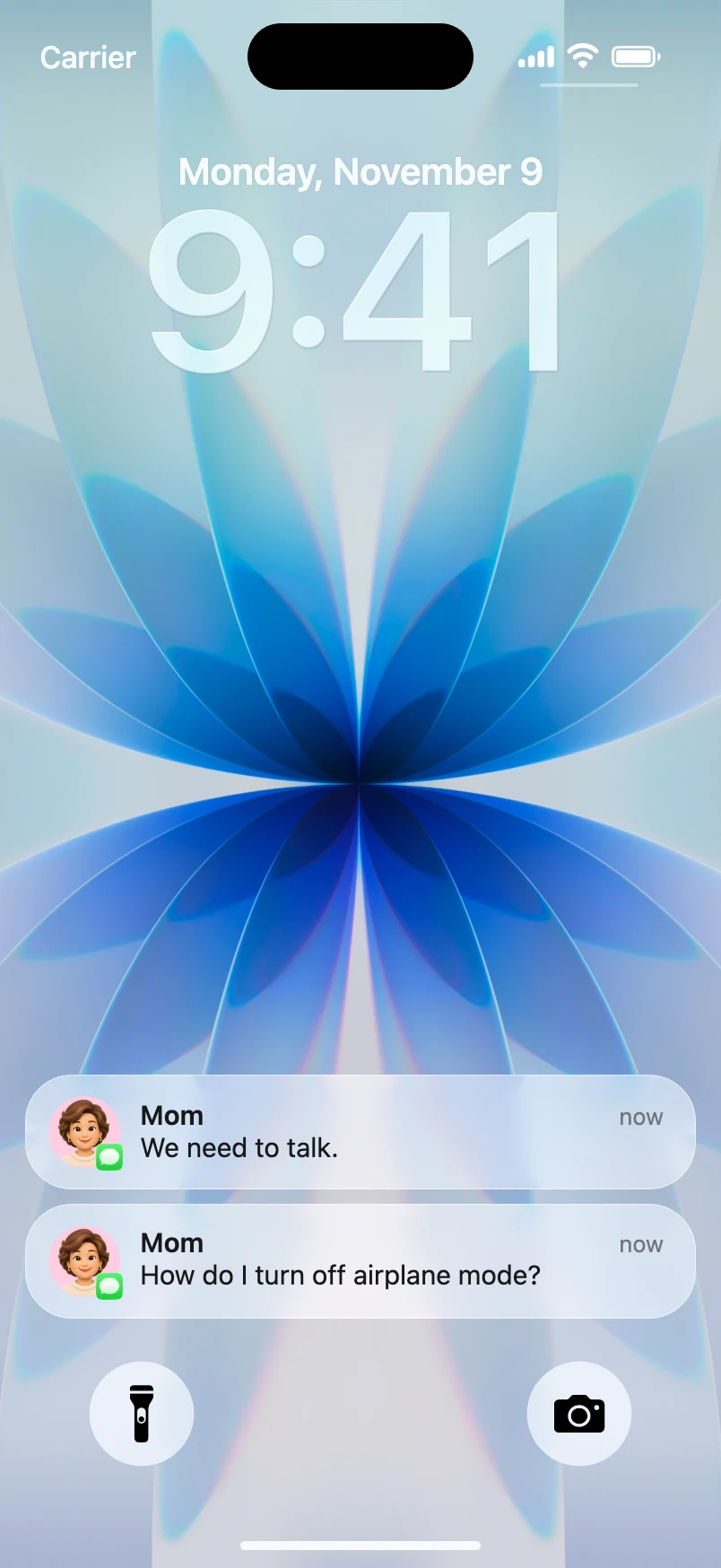
An iPhone notification mockup for a presentation makes an abstract example immediately understandable. Instead of saying "Imagine the phone shows an alert," you can show a fictional lock screen with a sample message. That can help with privacy training, app-design reviews, classroom activities, or onboarding lessons.
For a fake notification for PowerPoint or another static slide, you usually need a PNG. For a narrated slide deck or a recorded lesson, an animated phone notification slide can use an MP4 to show notifications arriving in a sequence. A browser-based tool like Mocknotif makes these visual examples without requiring you to send messages to an actual iPhone.
Match the mockup to the lesson
Start with the learning objective, not the design. A classroom example and a pitch deck should not use the same type of message.
Here are three safe examples:
| Lesson | Fictional alert | Teaching point |
|---|---|---|
| Privacy awareness | "Someone requested access to your account" | Pause and check the source |
| Product design | "Your weekly summary is ready" | Review clarity and tone |
| Time management | "Workshop begins in 10 minutes" | Understand reminder context |
These are fictional prompts. Do not copy an actual student's message, a real colleague's notification, or private account details into a public slide.
If the goal is to demonstrate a suspicious alert, describe it as an example. Showing a realistic visual is not the same as authenticating a message from a company.
Create the slide asset
- Write one short notification that directly illustrates the point you want the audience to remember.
- Open Mocknotif and create an iPhone-style lock-screen scene.
- Choose a simple wallpaper and enter fictional app, sender, and message details.
- Use a PNG export for a slide that attendees should inspect or discuss.
- Use a timed MP4 if the arrival order is important—for example, a reminder followed by a warning.
- Add the asset to PowerPoint, Google Slides, Keynote, or your recorded presentation workflow and check readability from the back of the room or on a small laptop.
For static slides, one notification per example is often enough. If you need a comparison, put two mockup images side by side with concise labels such as "clear wording" and "unclear wording."
Make the presentation accessible
Explain what the image shows. Add a short caption outside the screenshot: "Illustrative lock-screen notification from a fictional app." Your audience should not have to infer whether it is a real device capture.
Use readable text. A narrow phone screen contains small type. On a large presentation slide, don't shrink the entire image until the message becomes impossible to read. Crop or enlarge the relevant portion in the slide editor if needed.
Describe the key content aloud. If the notification is central to the lesson, read the important line or summarize it for people who may not see the screen clearly.
Provide accessible alternatives. Add appropriate alt text to exported images in your presentation software and include the essential notification wording in the slide notes or accompanying text.
Avoid deceptive examples. Never use a simulated payment, safety alert, or private conversation as evidence that something really happened. Label the scene and use fictional details.
For a product-team version of the workflow, see creating iOS push notification mockups for app demos. If you want the notifications to arrive during a recorded explanation, start with the animated iPhone notifications tutorial.
When should you choose a screenshot or a video?
Use a PNG for a static checklist, an assessment question, a pitch-deck comparison, or a handout. Participants can pause and read it at their own pace.
Use MP4 for a narrated demo or a recorded lecture where timing changes the meaning. You can play one alert, discuss its implications, then reveal the next. A short animation also helps demonstrate how a sequence can feel urgent or distracting, which a still image cannot show as effectively.
Whichever format you choose, test it in the software you will actually present from. Fonts, crop, playback, and slide transitions can behave differently across platforms.
Frequently asked questions
Can I create an iPhone notification example without a phone?
Yes. Mocknotif provides a visual simulation that can be exported as an image or a video without sending a real notification.
Is PNG or MP4 better for PowerPoint or Google Slides?
PNG is generally simpler for still slides. MP4 is useful for timed demonstrations, provided you test playback in your presentation software.
Can this show a real app's push-notification behavior?
Only the illustrative appearance. It does not test delivery, interaction, permissions, or how a live app responds on a specific device.