
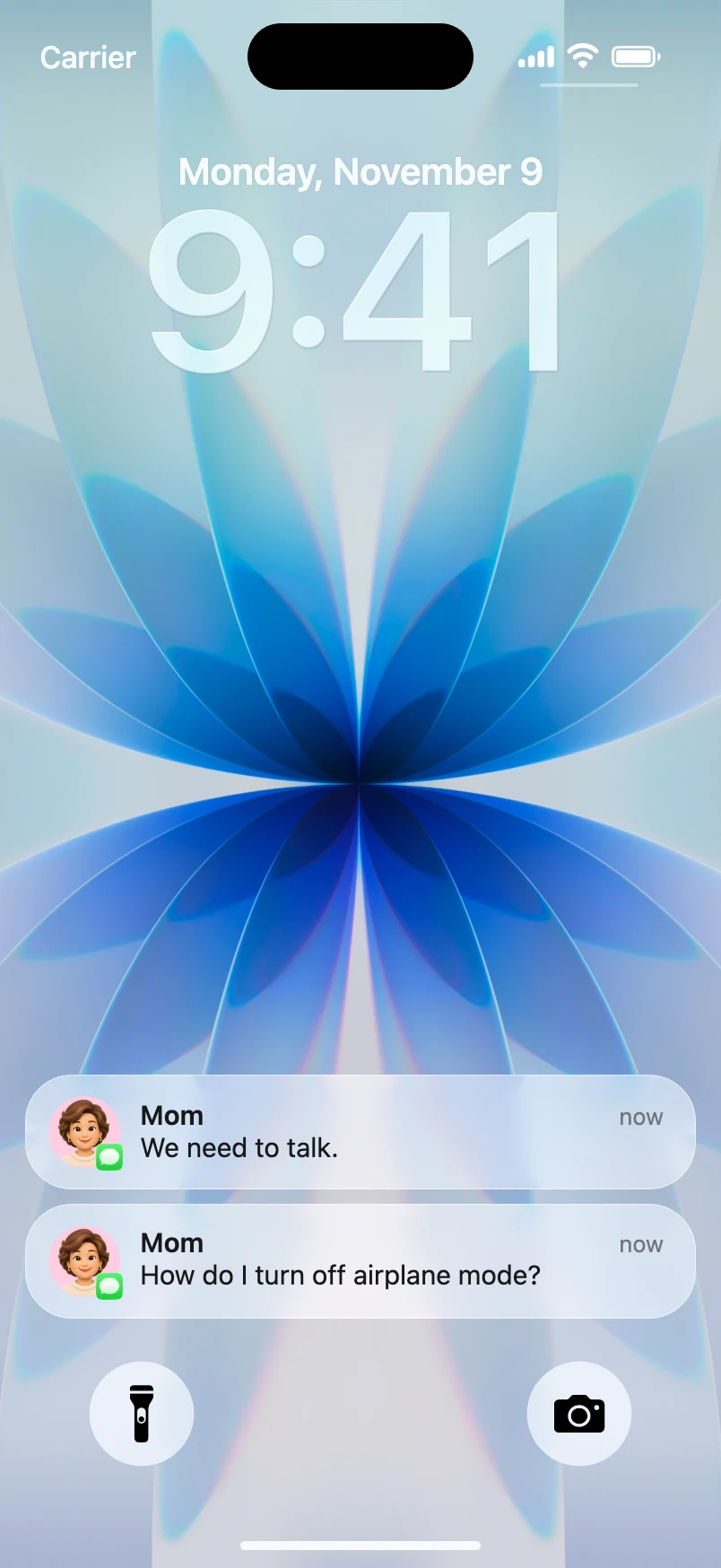
A fake iMessage notification video can tell a whole story without showing a chat conversation. Instead of watching messages appear inside the Messages app, viewers see incoming alerts on a fictional iPhone lock screen. This is useful for a suspense reveal, a comedy sketch, or a quick transition between scenes.
An iMessage notification animation works best when each incoming notification changes what the viewer believes. You can make this fake text notification video with a browser-based mockup tool such as Mocknotif, which is designed for animated lock-screen notifications and MP4 export. It produces a visual simulation; it does not send actual iMessages.
Write the message sequence like a short script
Start with a three-beat story. Here is a fictional mystery you can adapt:
| Beat | Sender | Message | Suggested arrival |
|---|---|---|---|
| Setup | Alex | "Are you home yet?" | 0.7 sec |
| Escalation | Alex | "Don't open the front door." | 2.5 sec |
| Twist | Unknown | "Too late." | 4.8 sec |
In this text message story video, the third alert changes the meaning of the previous two. That is why the sequence works as a short narrative rather than three random messages.
Write every alert for the lock screen, not for a full chat transcript. A sender name and one brief line usually communicate enough. Avoid long dialogue, detailed backstory, or text that requires scrolling. If the story needs a dozen back-and-forth replies, a chat-conversation generator may be a better format than notification cards.
Build an iMessage-style lock screen scene
- Open Mocknotif and prepare a neutral wallpaper. Darker backgrounds can help light notification cards stand out, depending on your chosen appearance.
- Add a fictional Messages-style alert. Enter a sender name and the first line of dialogue.
- Create a second and third alert. Keep the app identity consistent if they are all supposed to be text messages.
- Arrange the arrivals so the viewer has time to read each line. Use a slightly longer gap before the twist.
- Preview the complete scene at normal speed. Watch it without sound: is the sequence understandable?
- Export the moving sequence as an MP4. Use a still PNG if you need a storyboard frame or a social post.
You do not need to use someone's actual phone number, message history, or profile picture. Fictional names are often better because they make the story reusable and avoid privacy issues.
Choose the right reveal and pacing
A static screenshot reveals all three alerts at once. In an animated iMessage notification video, you decide when viewers learn each detail. That is the strongest reason to use motion.
For a suspense scene, try this sequence: one short alert appears, a second message creates concern, then leave a brief empty beat before the final card arrives. For comedy, reverse it: build a serious setup and deliver a ridiculous final line.
Do not force realism at the expense of clarity. Real iPhones can group notifications differently, and people's preview settings vary. Your goal is a recognizable, readable iPhone message notification mockup, not a claim that the scene came from a real person's device.
A common editing mistake is to add a heavy sound effect to every arrival. Three loud chimes in five seconds can be more distracting than helpful. Test the scene muted first; then add audio only if it improves the storytelling.
Use the video in a larger story
You can place the exported lock-screen clip between two shots of an actor, add a title such as "Three hours earlier," or use it as an opening hook for YouTube Shorts. If the final destination is CapCut, use the workflow in our CapCut guide.
For a humor-first version, the TikTok notification guide shows how to turn a single message into an immediate video hook. If you need a more general walkthrough, start with animated iPhone notifications.
Keep the fictional context visible if a viewer might mistake the scene for authentic evidence. Never present simulated messages as a real person's words or as proof of an event.
Frequently asked questions
Is this a fake iMessage chat generator?
Not exactly. This workflow creates incoming notification cards on an iPhone-style lock screen, rather than an editable full-screen Messages conversation.
Can I set the time between messages?
The notification-animation workflow is built around arranging messages in sequence. Use the editor's available ordering and timing options and verify the resulting pace in Preview.
Can I make a story without recording my iPhone?
Yes. Export the animated mockup as an MP4 and use it like any other video clip. It is a simulation, not a screen recording from a real device.