
A fake WhatsApp notification on an iPhone is useful when your story needs a familiar messaging cue but not an entire chat interface. A single incoming alert can introduce a character; a sequence can suggest a group making plans, a surprise invitation, or a comic misunderstanding.
You can create a fictional WhatsApp notification mockup in a lock-screen editor such as Mocknotif, using the messaging-app style, custom message text, and an animated arrival sequence. This is a graphic for storytelling or design—not a real WhatsApp message, conversation export, or account activity.
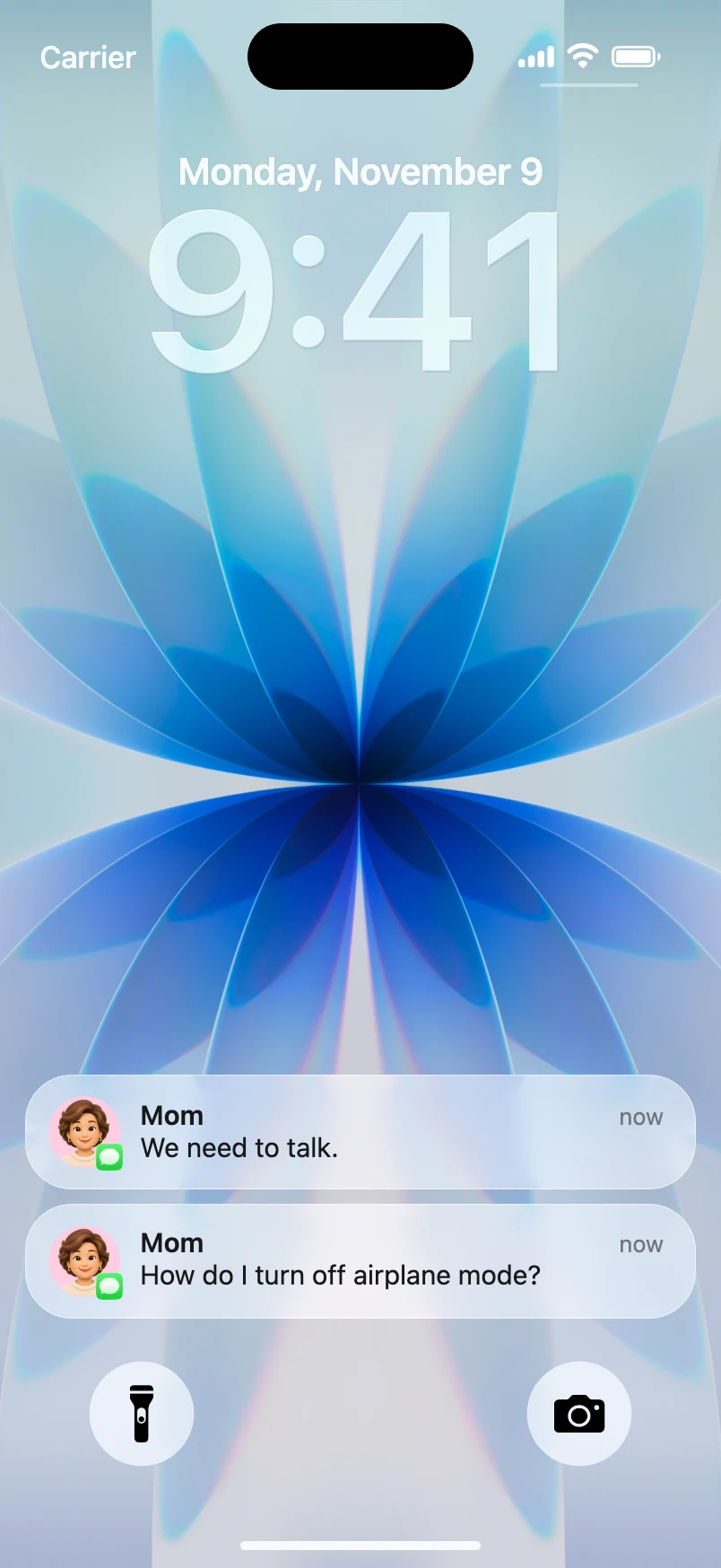
Decide what the audience should see
A notification contains less context than a full chat. That limitation is useful if you want the audience to discover information one line at a time.
For example, imagine a comedy about a dinner that goes wrong:
| Sender | Fictional notification | Why it works |
|---|---|---|
| Jordan | "Table for six, right?" | Establishes the plan |
| Sam | "I invited three more people" | Creates a problem |
| Jordan | "It's a table for FOUR" | Delivers the joke |
Avoid copying someone else's real chat. Invent the names and messages, and make it clear the scene is scripted when you share it out of context.
If you need a fake WhatsApp notification screenshot, plan one final composition. If you want the audience to experience each new message as a reveal, plan a WhatsApp lock screen animation instead.
Build the mockup and export it
- Open the Mocknotif editor and start from an iPhone lock-screen scene.
- Select the available WhatsApp-style app appearance or configure the corresponding app identity in the notification controls.
- Enter a fictional sender and the message. Keep the most important words near the beginning.
- Adjust the wallpaper and visual contrast so the message remains readable.
- Add more notifications if your scene calls for a back-and-forth sequence. Check the timing and order in the preview.
- Export PNG for a still mockup or MP4 for the animated arrivals.
The exact look of real WhatsApp alerts depends on iOS settings, message-preview permissions, and app behavior. Treat this as a visual reference rather than an official recreation of every configuration.
Avoid common WhatsApp mockup mistakes
Too much text: If a notification becomes a paragraph, shorten it or split it into separate beats. The card should be readable in the small preview size of a vertical video.
Unclear group context: If three different names appear, viewers may not know whether they are individual chats or a group thread. Establish that through the script, title, or a caption rather than relying on an exact notification layout.
Identifiable real people: A joke does not require someone's actual phone number, private message, or profile photo. Use invented characters and imagery you have permission to use.
Misleading screenshots: Do not use a notification image to imply that a person or organization said something they did not say. Include "fictional mockup" or "reenactment" where the context could be misunderstood.
Confusing notification and conversation tools: Mocknotif's focus here is an incoming lock-screen alert. If a story needs bubbles, read receipts, voice notes, or scrollable chat history, choose a chat-conversation workflow instead.
For a similar messaging concept with a different app identity, see our iMessage notification video guide. For the broader timing workflow, read how to make animated iPhone notifications.
Choose a useful output format
For a tutorial or marketing slide, a PNG can show the exact notification text without asking the reader to play a video. For a short film or a social clip, MP4 makes the arrivals part of the story. Review the product's current watermark or paid-export terms in the editor before you finalize a client deliverable.
If this mockup will appear next to a real WhatsApp screenshot, label which elements are simulated. That distinction helps viewers understand the purpose of the visual and reduces confusion about authenticity.
Frequently asked questions
Can I generate a real WhatsApp message?
No. This workflow creates a visual simulation of an incoming alert. It does not send a WhatsApp message or connect to a WhatsApp account.
Can I animate several WhatsApp-style notifications?
Yes, the notification video workflow supports a sequence of fictional alerts. Preview the timing before export so each line can be read.
Is this the same as a fake WhatsApp chat screenshot?
No. A chat screenshot shows the conversation interface. A notification mockup shows alert cards on an iPhone-style lock screen.