
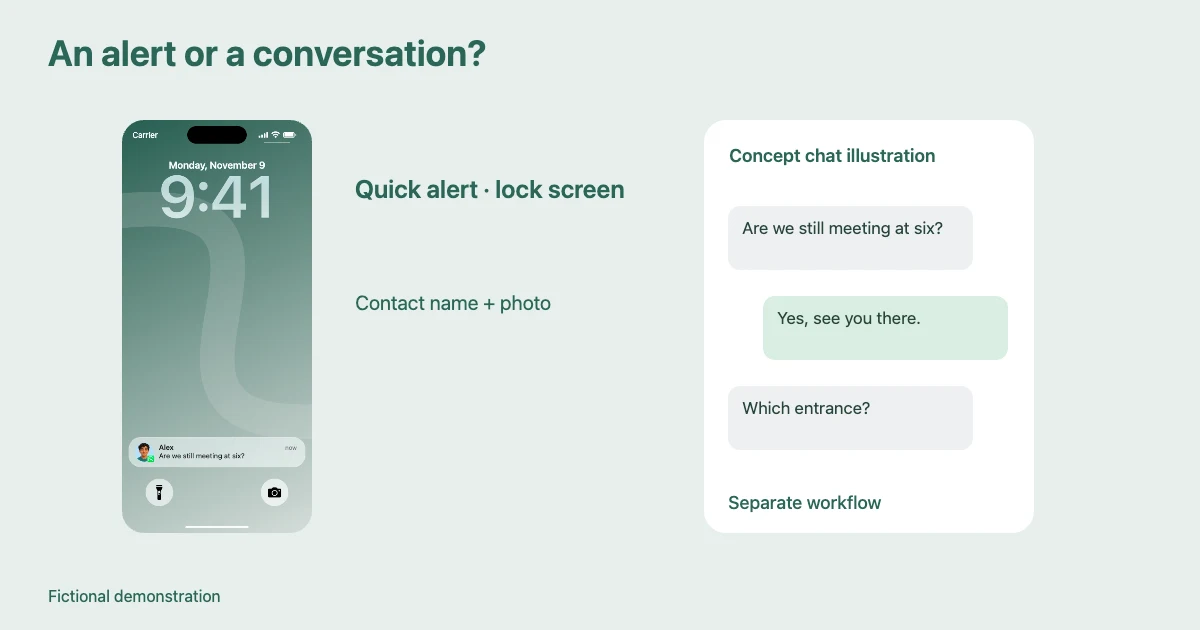
When someone asks for a “fake WhatsApp screenshot,” they may mean two different things: a WhatsApp notification mockup on a phone lock screen, or a screenshot of the conversation inside WhatsApp. The difference affects the story you can tell, what information viewers see, and which tool you should use.
Choose a notification when the important event is that a message arrives. Choose a chat screenshot when the viewer needs to read the conversation itself. Mocknotif's WhatsApp tool is designed for simulated incoming notifications and lock-screen visuals. It should not be described as an entire WhatsApp chat interface generator.
The difference at a glance
| Question | WhatsApp notification mockup | WhatsApp chat screenshot |
|---|---|---|
| Where does it appear? | On a phone lock screen or notification surface | Inside a chat conversation |
| What does it emphasize? | Timing and message arrival | Conversation history and message bubbles |
| Best for | Skits, short-film inserts, push-notification demos | Explaining dialogue, long fictional exchanges, training examples |
| Typical visual | App identity, sender, brief message preview | Multiple messages, timestamps, bubbles, chat header |
| Can it be animated? | Timed arrivals can be simulated | Requires a separate chat animation workflow |
| What Mocknotif provides | Simulated notification PNG and MP4 | Not a replacement for a full chat generator |
The phrase WhatsApp chat screenshot vs notification is about information design, not just visual taste. A lock-screen scene tells an audience that something has interrupted the character. A chat view tells them the character has already opened the conversation.
Choose a notification for an interruption or reveal
Imagine a short film about someone waiting outside the wrong restaurant. A notification from “Alex” appears: “We're at the other entrance.” The character reacts. Another arrives: “The entrance with the giant dinosaur.” A notification sequence communicates the interruption without needing a scene of the character opening an app.
This is where a WhatsApp lock screen mockup is effective. The audience focuses on when the message arrives. A contact-style notification can feature the fictional sender's photo or avatar, while an app activity alert—such as a fictional “Backup completed” update—should show the WhatsApp identity without a contact portrait.
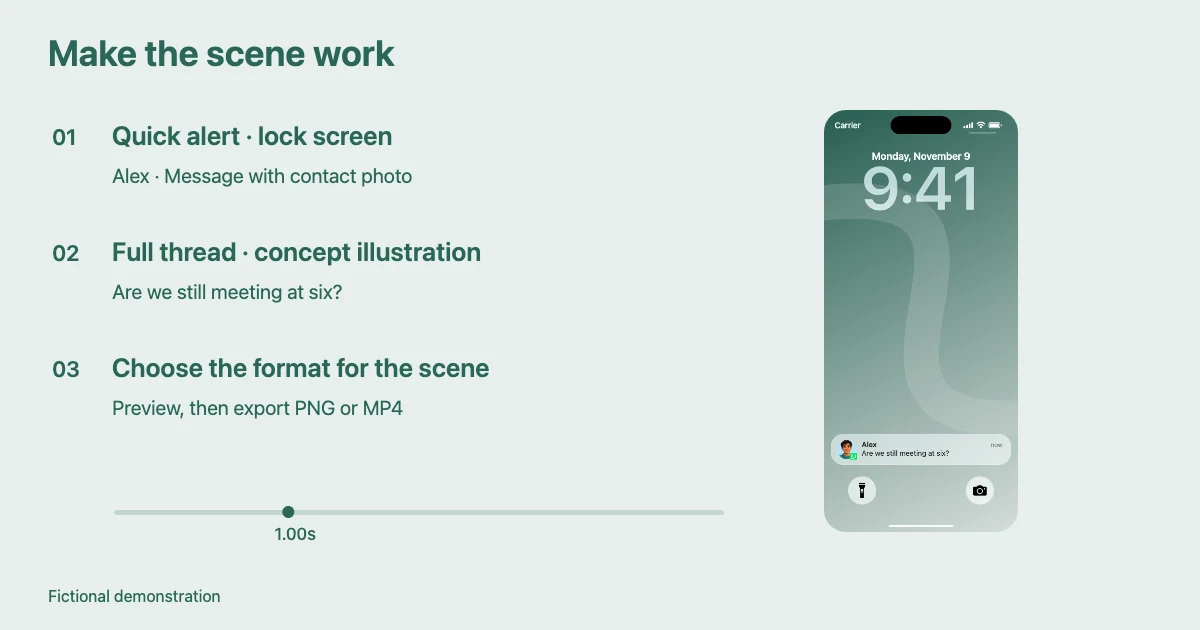
To make a notification scene, open Mocknotif's WhatsApp generator, add your fictional preview, adjust the arrival time if you need motion, and export a PNG or MP4. The output depicts a visual simulation; it does not prove someone actually sent the message.
Choose a chat screenshot for dialogue or history
If your tutorial needs to explain which message was sent first, what someone replied, or how a long discussion developed, a chat interface is often the better presentation. It has room for message bubbles and a chronological thread. A lock-screen notification may truncate longer text and omit the surrounding context.
For a film scene, consider a chat screenshot if the character is actively reading, typing, or replying. For a lecture, consider it if you need to highlight the difference between messages sent and received. A dedicated chat mockup workflow should support the particular elements you need, such as bubbles, order, and status markers. Do not assume a lock-screen notification maker has those controls.
If your aim is to tell an entire story through a series of arriving alerts, a notification animation may still be enough. Read how to make an animated WhatsApp message story video for scripts and timing.
Keep a fictional mockup believable without misleading people
A good mockup uses consistent fictional identities and a visual format appropriate to the context. For a person-to-person alert, choose a permitted or generated avatar and write a short preview. For app-level updates, use the app identity. Real iPhone notification appearance varies by OS version, settings, and the application's notification type; a visual mockup is not a forensic reproduction of a private conversation.
Be particularly careful with mockups that could be taken for a real admission, payment confirmation, or statement from an actual person. Label work as a demonstration, fictional scene, or prop when it may circulate outside its original context. Avoid using real names, profile photos, and confidential information.
For a basic step-by-step walkthrough, see how to make WhatsApp notifications on iPhone. That guide focuses on creating a single or simple simulated notification, rather than choosing between two formats.
Frequently asked questions
Can Mocknotif generate a full WhatsApp conversation screenshot?
No. Its core workflow is an iPhone-style notification mockup and animated notification scene. Use a dedicated chat-interface tool if you need a conversation view with bubbles and chat history.
Which is better for TikTok or Shorts?
If the hook is a sudden arrival, use a timed lock-screen notification. If the joke depends on reading several exchanges, use a chat layout or a dedicated animation that clearly shows the dialogue.
Does a chat notification always need a contact photo?
Not always in the actual app. In a mockup, a permitted avatar can make a fictional direct message clear, while an app/system notification should generally rely on the app icon. Check the selected visual style rather than forcing a portrait on every alert.