
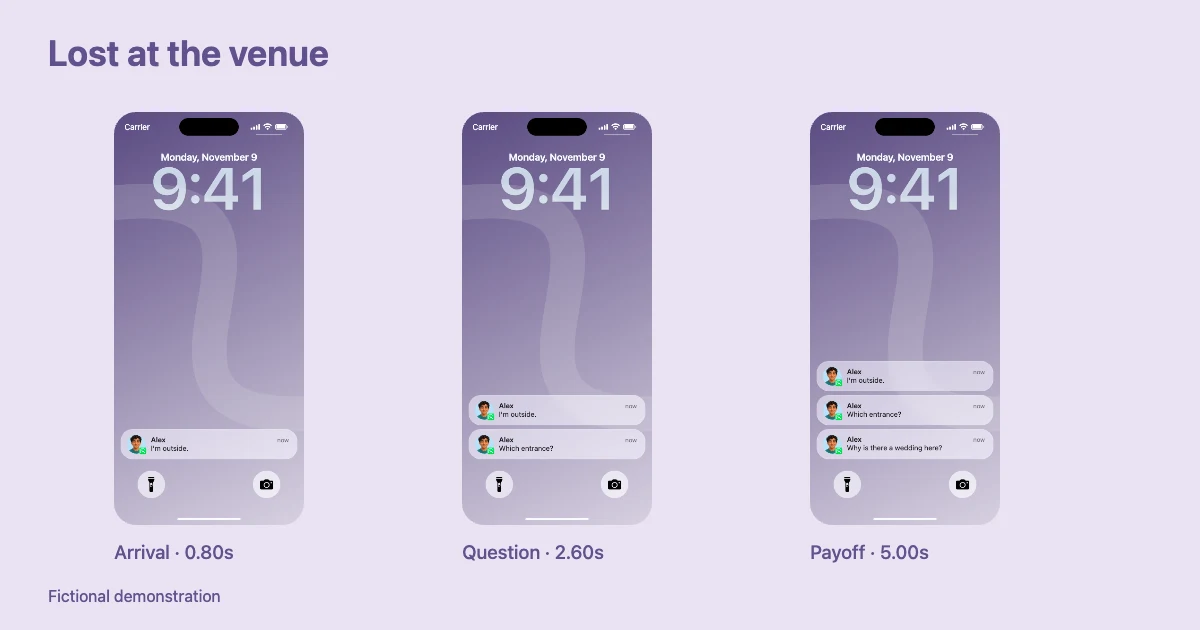
A WhatsApp notification animation can tell a small story through messages arriving on an iPhone-style lock screen. You do not need to stage an actual WhatsApp conversation or screen-record a personal account. For a skit, tutorial, or short video, you can write fictional messages, control when the notifications arrive, and export a visual scene.
The secret to a good WhatsApp message story video is not adding more text. It is the gap between the first message and the next one. That pause gives the viewer time to anticipate what happens. This guide covers storytelling and timing; for a basic still notification, see how to make fake WhatsApp notifications on iPhone.
Write a beginning, a complication, and a payoff
Consider a fictional friend organizing dinner:
| Appearance | Sender | Preview text | Function |
|---|---|---|---|
| 0.7 s | Alex | “I'm outside.” | Establish location |
| 2.1 s | Alex | “Which building?” | Introduce confusion |
| 4.8 s | Alex | “Why does this one have a wedding?” | Reveal the mistake |
This sequence is short enough to read on a mobile screen. It has a first beat, rising uncertainty, and an ending. Your animated WhatsApp notifications should make sense even when viewers do not hear the background audio.
You can create a similar sequence with a travel delay, a missed delivery, a surprise birthday party, or a gaming teammate who joined the wrong call. Use fictional people and ordinary life moments. Do not fabricate evidence of private conversations, real orders, or transactions.
Configure the WhatsApp lock screen scene
Open Mocknotif's WhatsApp notification tool. The app-specific page is intended to start with the WhatsApp style selected so you can focus on content rather than choosing an app from a general list.
- Choose the message / chat notification type for person-to-person text.
- Enter the fictional sender name and a concise message preview.
- If the editor supports a contact photo, add a fictional or permitted avatar so the visual communicates a person-to-person message. Otherwise, use a clean fallback avatar; never silently replace a chat sender with an unrelated person's picture.
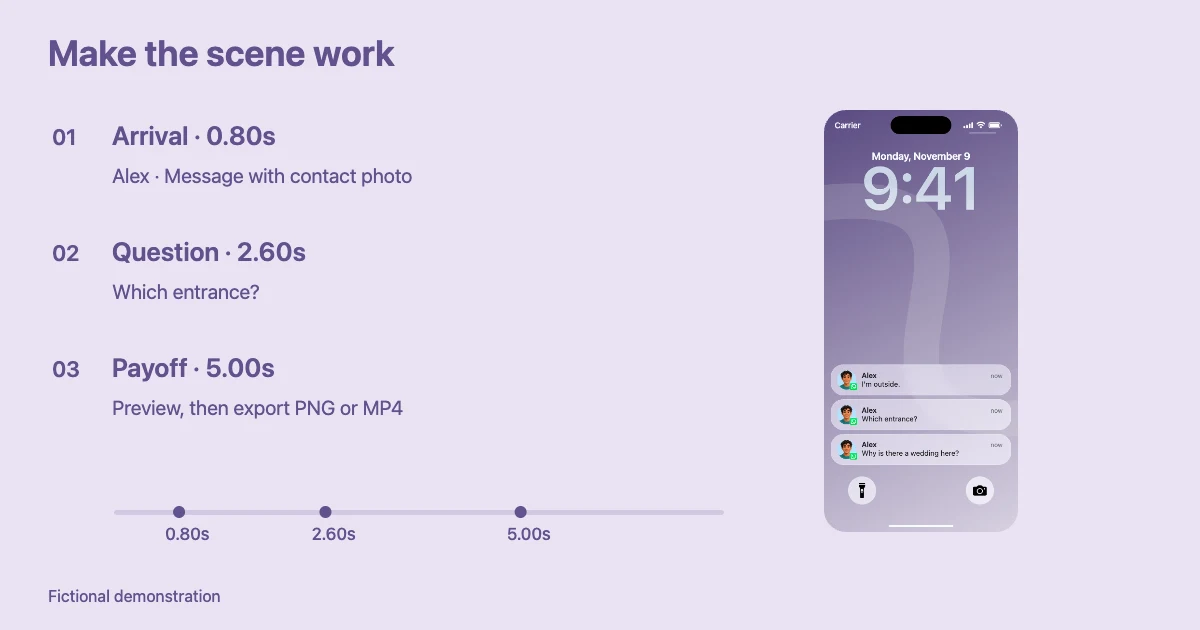
- Add the next notification and set a later appearance time; repeat for the final payoff.
- Preview from the beginning and adjust the timing after reading at phone size.
- Export an MP4 if the messages need to move, or a PNG if you only want one finished frame.
A WhatsApp lock screen video is a simulated phone-screen visual; it is not an export of an actual WhatsApp chat or a way to send alerts to a device. Real notifications vary with iOS settings, app behavior, and whether the sender has a contact image.
Pace the animation for a short video
A first notification appearing immediately can help a scrolling viewer recognize the topic. A second alert can arrive fairly quickly if it merely adds context. A reveal deserves a longer pause. For the dinner mix-up above, 0.7 / 2.1 / 4.8 seconds gives viewers a chance to understand what is happening before the final message.
Use a 6–10 second rough storyboard first and only increase its duration if the message previews are long. Avoid fast arrivals that cause unread cards to stack and compete for attention. The ending also needs breathing room: keep the final message on screen for a moment before the video ends.
A message notification should show human context, such as a sender and optional contact photo. A system or app activity notification should emphasize the WhatsApp app identity and an event message rather than showing a random contact portrait. For example, “Backup completed” is a fictional activity-style alert, not a message from Alex. Mixing the two types can be useful in a longer tutorial, but only when the distinction serves the story.
If you are editing in CapCut, import the complete MP4, fit it into your project aspect ratio, and place sound or reaction shots on separate tracks. The lock-screen video is not a transparent PNG or transparent video layer. For that workflow, see how to use an iPhone notification video in CapCut.
Improve readability before exporting
Read each message at the scale it will appear on a phone, especially if the final output is a vertical Short. Choose a plain wallpaper behind light notification cards, or another background that creates sufficient contrast. Avoid long names that wrap awkwardly, unnecessary emoji chains, and multiple plot points in a single alert.
A thumbnail may benefit from a PNG showing the final state, while a Reel or Short benefits from the full animation. In either case, keep the names and preview texts invented unless you have permission to depict the individuals involved. If a screenshot could be confused with evidence of a real conversation, label it as a fictional scene or mockup.
If you are deciding between a notification scene and an entire chat interface, read WhatsApp notification vs chat screenshot: which mockup do you need?.
Frequently asked questions
Is this a WhatsApp conversation animation?
It is an animated lock-screen notification sequence. It shows previews of incoming messages, not the interior of the WhatsApp chat application.
Can I create messages from two different fictional contacts?
If the editor supports multiple sender entries, set each sender separately and use a consistent fictional contact photo for repeated messages from the same person. Review the preview to ensure identities are clear.
Do I need to record an actual iPhone?
No. The purpose of a browser-based notification scene is to create the visual without sending live messages or recording personal conversations.