
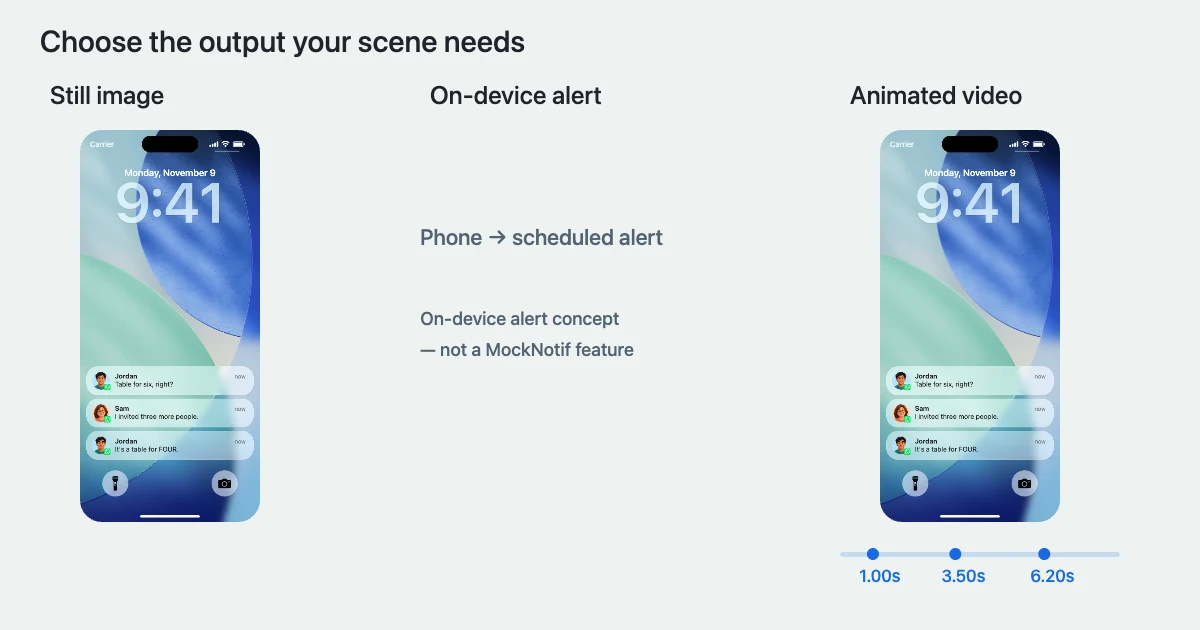
The right fake notification app depends on what you need at the end: a screenshot, an alert that appears on your own phone, or a video of messages arriving one after another. These can look similar in a preview, but they solve different problems.
For a fictional WhatsApp scene in a short film or social video, Mocknotif's WhatsApp notification maker provides a lock-screen animation workflow with MP4 export. For a still image, a screenshot generator may be enough. For a notification scheduled to appear on an actual device, look for an app that explicitly supports on-device alerts.
This guide compares those workflows so you do not install or pay for the wrong kind of tool.
Publisher note: Mocknotif publishes this guide. Competitor information below comes from official product pages and app-store descriptions, not a hands-on speed or image-quality test. Features and purchase options can change.
Decide what the finished result needs to do
Start with where the notification will appear, not which app has the most features.
| Your goal | The useful output | What to look for |
|---|---|---|
| Add a phone notification to a slide or thumbnail | A still image | Editable sender and text, readable export |
| Stage an alert on your own Android phone | An on-device notification | Explicit scheduling support and the necessary device permissions |
| Reveal messages during a scripted video | An animated clip | Arrival timing, playback preview, video export |
| Show both sides of a conversation | A chat-interface mockup | Message bubbles, replies, conversation layout |
A WhatsApp notification screenshot depicts an incoming alert outside the conversation. It does not show a complete chat thread. If the audience must read both sides of a conversation, start with our notification-versus-chat screenshot comparison rather than trying to force an entire dialogue onto notification cards.
For a video, ask a second question: does the message need to arrive, or can it already be visible? A still image can establish context. An animation lets a pause or a second message change the scene.
Also distinguish an appearance time from a displayed timestamp. A card that says “now” is not necessarily scheduled to arrive. An app advertising editable notification times may mean the text shown on a still image. Confirm the behavior you actually need.
Compare four fake notification tools
The tools below are alternatives for different tasks, not a ranking from best to worst. In particular, “not confirmed” means the reviewed description did not establish a feature; it does not mean the feature is impossible or definitely absent.
| Tool | Where you use it | Workflow described by the product | What to check for your project |
|---|---|---|---|
| Mocknotif | Browser | iPhone-style notification scenes exported as PNG or timed MP4 | Whether you need a lock-screen clip rather than a full chat; current watermark terms |
| FakeNotif | Browser | Custom notification screenshots exported as PNG | Its published workflow is image-focused; confirm animation support separately |
| Faker – Fake Notifications | iPhone / iPad app | Build lock-screen images, then save or share them | Which options require purchases; animated MP4 export is not confirmed by the description reviewed |
| Fake Notifications by Zopsoft Technology | Android app | Create or schedule notifications on the device | Device behavior and paid options; downloadable MP4 is not confirmed by the description reviewed |
Mocknotif: when the deliverable is a notification video
Mocknotif is designed around a visual scene: choose a messaging-app style, enter fictional notifications, set their arrival times, and preview the result. Export PNG when you need a still, or MP4 when the arrivals are part of the story.
It is not a way to send WhatsApp messages or schedule operating-system alerts. Its lock-screen video should not be confused with a transparent notification-only overlay or a complete conversation interface.
The free MP4 workflow includes a Mocknotif watermark; watermark-free export is a paid option. Check the current editor and checkout terms before preparing a final client deliverable.
FakeNotif: when a browser-made PNG meets the brief
FakeNotif's official page describes a browser-based notification generator with customizable app identities, including WhatsApp, and PNG download. It advertises free, watermark-free image exports without an account.
That makes it a relevant option when you only need a still. The page reviewed focuses on PNG; do not assume it supplies a timed MP4 sequence without checking its current editor.
Faker: when you prefer an installed iPhone app
The Faker – Fake Notifications App Store listing describes composing a lock-screen image and saving or sharing it. Some additional options are sold through in-app packs, and the listing distinguishes between those packs.
For a Faker fake notifications comparison, focus on your required output and the options included in the purchase. The reviewed description does not establish animated MP4 export, so verify that before choosing it for a video assignment.
Fake Notifications by Zopsoft: when you need an Android alert
Fake Notifications by Zopsoft Technology on Google Play describes instant and scheduled notifications, history, editing, and sender-icon options. Its listing also describes advertising and premium features.
This is a different workflow from producing a downloadable scene for editing. A notification generated on your device is not a WhatsApp message delivered through someone else's account. Check the app's current behavior on your device before relying on it for a staged shot.
Build a WhatsApp scene without a live message
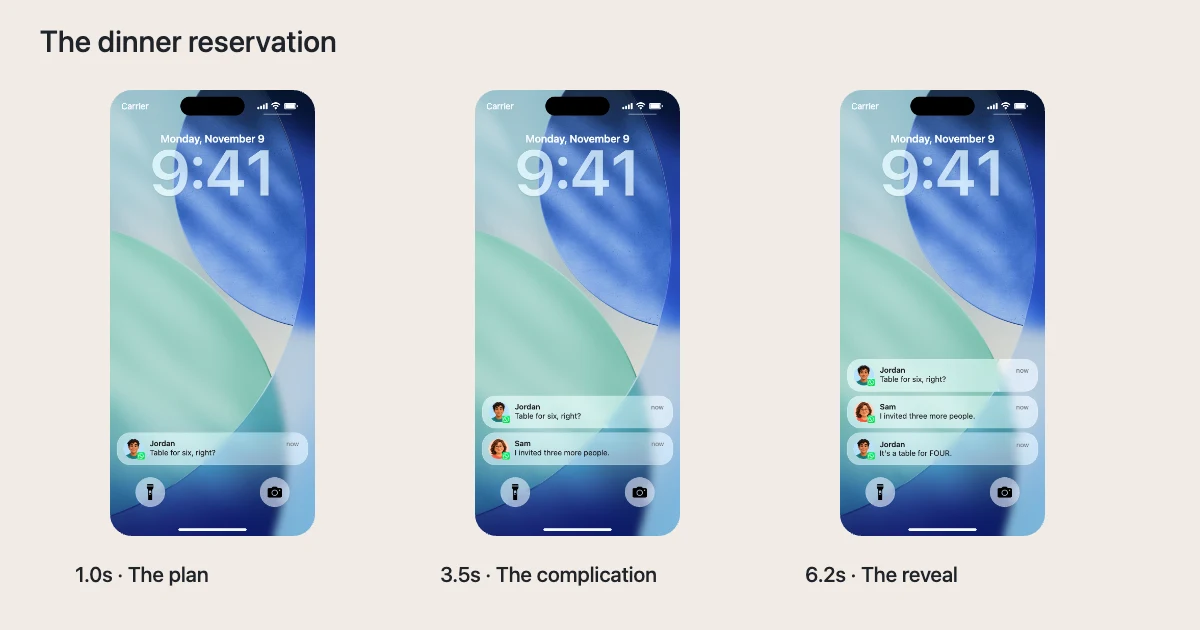
Consider a short comedy about a dinner reservation. The viewer only needs to see three incoming alerts, not an entire group conversation:
| Suggested arrival | Fictional sender | Message |
|---|---|---|
| 1.0 seconds | Jordan | Table for six, right? |
| 3.5 seconds | Sam | I invited three more people. |
| 6.2 seconds | Jordan | It's a table for FOUR. |
These are suggested animation settings, not a claim that this is an installed preset. They represent messages arriving for one recipient; they do not recreate a full WhatsApp group-chat screen.
For a static thumbnail, show a readable final frame. For a video, let the viewer register the plan before revealing the mistake. Hold the final message long enough to read it instead of ending the clip as it appears.
In Mocknotif, open the WhatsApp tool and enter the three incoming notifications. Give Jordan the same permitted avatar on both messages, and use a different one for Sam. Keep the background simple, adjust the arrival times, and watch the preview before exporting.
For the exact editing workflow, follow the WhatsApp notification creation tutorial. For pacing and script development, use the animated WhatsApp message story guide.
This is where animated WhatsApp notifications add something a still cannot: the audience learns the punchline after the setup. That is a useful reason to choose animation, rather than adding movement simply because an export button exists.
Check these details before installing or paying
Check the actual file you need. An image saved to a phone gallery, a notification shown by Android, and an MP4 clip are different deliverables. A polished preview alone does not establish which one you will receive.
Check the purchase scope. Read whether a payment unlocks styles, editing controls, ad removal, or watermark-free export. Do not assume one pack unlocks every feature, or that every “free” tool has the same limits. Use the product's current checkout information rather than an old comparison price.
Check readability at the final size. A notification viewed inside a vertical video can be much smaller than it appears in the editor. Test a short sentence first. Look at the sender, contact photo, line wrapping, and time available to read the message.
Check the boundary between simulation and delivery. A browser-rendered scene is a visual asset. An installed app may create a local alert under the phone's notification rules. Neither should be presented as proof that a real person sent the fictional message.
Keep the story fictional or permission-based. Invent names and messages, use images you are allowed to use, and identify staged scenes when viewers might otherwise mistake them for authentic conversations.
Frequently asked questions
Do I need an app to create a WhatsApp notification screenshot?
Not necessarily. Browser tools such as FakeNotif and Mocknotif provide image-generation workflows. An installed app is a different option, particularly when your task involves the device itself rather than an exported asset.
Can a fake notification app send a real WhatsApp message?
Do not confuse the two. Mocknotif creates visual notification scenes and does not send messages. A locally generated phone alert also should not be treated as a message delivered through WhatsApp.
Is Faker the same as Mocknotif?
No. They are separate products. The Faker listing describes an installed lock-screen image workflow; Mocknotif provides browser-based notification scene creation, including timed MP4 export. Compare the current output options and purchase terms against your specific task.
Which tool should I use for a WhatsApp notification video?
Choose a tool that explicitly provides the animation controls and export format your edit needs. Mocknotif is one option for timed iPhone-style lock-screen scenes. For full conversation bubbles or an interactive chat screen, look for a dedicated chat mockup workflow instead.
Can I use the exported MP4 as a transparent overlay?
Treat Mocknotif's output here as a complete lock-screen scene, not a transparent alert-only layer. Frame it as a phone-screen insert or place the complete clip within your edit. Do not choose it on the assumption that it provides alpha-channel video.