
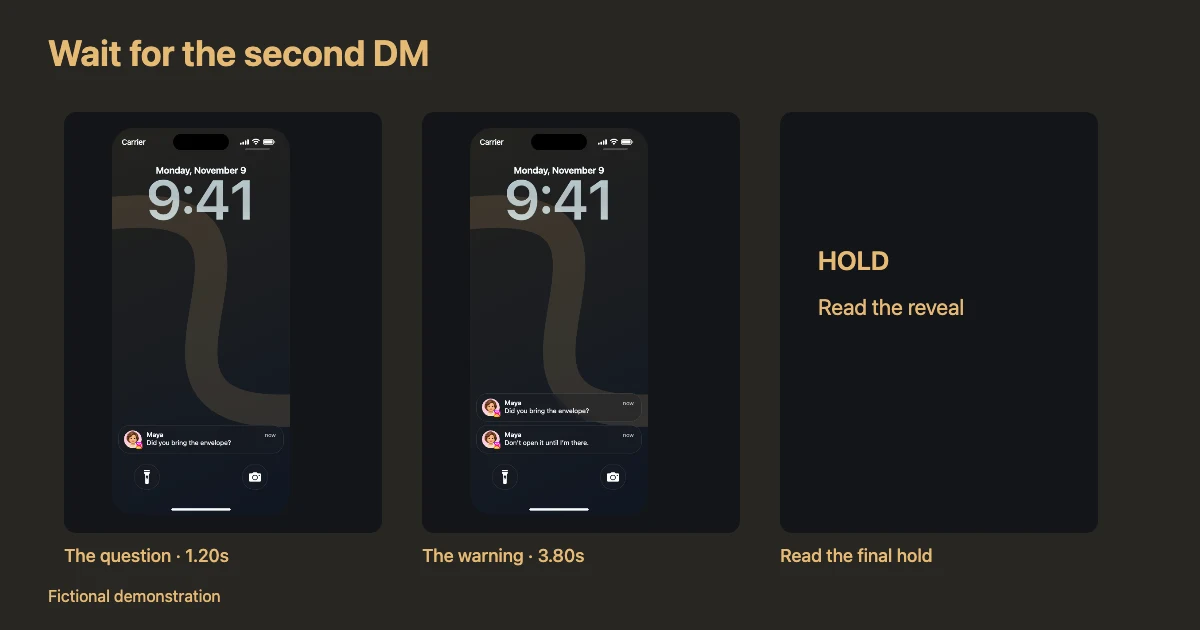
A fake Instagram DM notification is a useful film prop when a character receives a message that changes the scene. Rather than filming a personal phone or sending messages between real accounts, you can create an Instagram message notification mockup using invented names and text. The audience sees the arrival of a message without seeing the entire Instagram inbox.
For a lock-screen shot, the essential details are the sender, a recognizable app identity, a readable preview, and the moment the message appears. A tool such as Mocknotif's Instagram notification maker can help you arrange fictional notifications, preview their timing, and export the visual as a still PNG or animated MP4. It creates a simulation; it does not send a real Instagram DM.
Write the scene around the incoming message
Before opening an editor, decide what changes when the notification appears. A message can establish information, interrupt a moment, or deliver a reveal. It should not exist only because the screen looks interesting.
Here is a three-beat scene for a fictional student short film:
| Screen time | Visible detail | Narrative purpose |
|---|---|---|
| 0.0–1.2 s | Quiet iPhone lock screen | Establish normality |
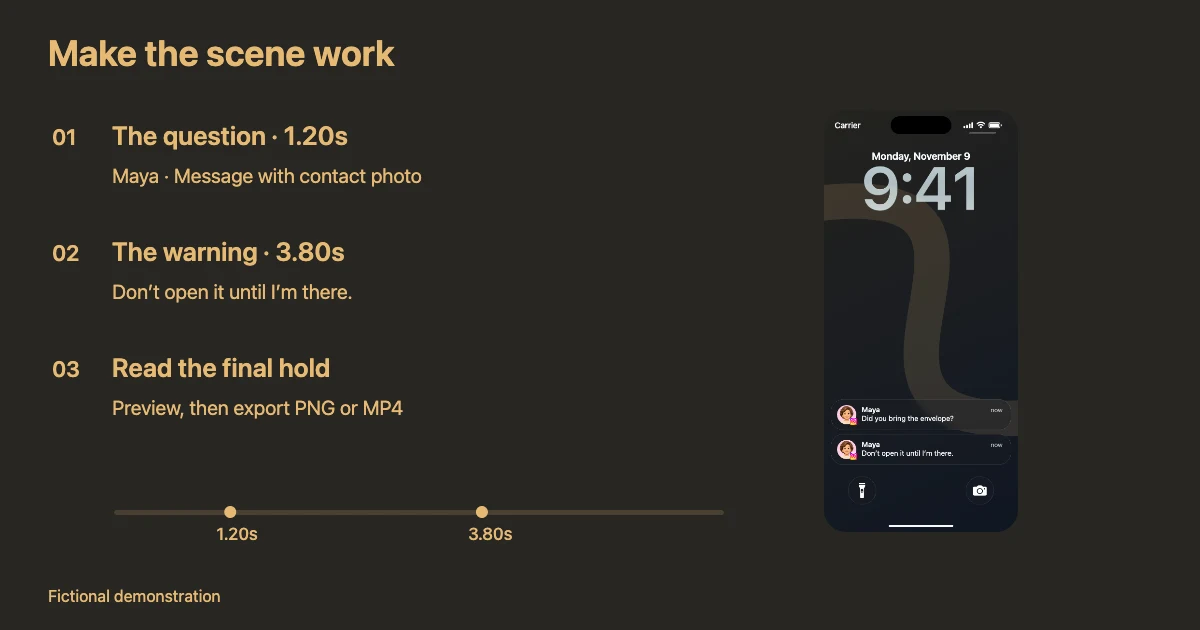
| 1.2 s | Instagram DM from Maya: “Did you bring the envelope?” | Introduce a question |
| 3.8 s | Second DM: “Don't open it until I'm there.” | Create suspense |
| 6.0–7.5 s | Hold both messages | Give viewers time to interpret |
Those timestamps are example edit decisions, not built-in defaults. Change them to fit your voice-over, reaction shot, and the length of your film. If the camera cuts away while a message is arriving, viewers may miss the point of the scene.
For an Instagram DM notification for video, one or two short sentences are usually more legible than a paragraph. Give the most important words their own notification and put the twist in the final message.
Build a convincing DM notification mockup
Start with the Instagram-specific editor so the app identity is already selected. Compose your fictional sender name, DM preview, and arrival order. If the editor has an optional contact photo, use an image you created or have permission to use. A message or direct-communication notification can visually prioritize the sender's image; a general Instagram activity alert normally emphasizes the app identity instead. Apple distinguishes communication and noncommunication notification presentations in its notification design guidance.
Choose a wallpaper that serves the scene: a restrained dark image for suspense, a casual personal photo for comedy, or a neutral texture for a tutorial. Keep the visual behind the notification less detailed than the notification itself. Use a fictional sender name rather than a real account impersonation.
Suggested checklist:
- Select the Instagram DM/message-style notification.
- Enter the fictional contact name and the text the actor is supposed to receive.
- Add a contact avatar if the selected message layout supports it; otherwise use the appropriate fallback.
- Set the arrival of the first message, then add a second message after the dramatic pause.
- Play the whole scene at normal speed; read the text at the size viewers will see on mobile.
- Export the animated MP4 for editing or a PNG if you need only a still prop.
Place the notification shot in your film edit
A complete lock-screen MP4 is easiest to use as its own shot. Import it into your timeline and cut to it as you would cut to a camera close-up. If you want the notification to appear over actual footage, you will need to composite the shot in an editor; do not assume a lock-screen export is a transparent video overlay.
Match your film's sound and pacing. A subtle audio cue can help viewers notice the appearance, but confirm you have permission to use the cue. Let the final DM remain on screen long enough to read. For a short social film, try a 1–2 second introductory hold, followed by the first arrival and a noticeably longer pause before the reveal.
If the finished clip is in portrait orientation, fit the complete phone screen into a vertical sequence without cropping the notification. In landscape films, a phone-screen insert beside the actor's reaction may communicate the story more clearly than a full-frame phone shot.
Do a test export and view it on a real phone, not only a large monitor. Text that looks crisp on a desktop can become too small once a platform resizes the video.
DM notifications vs general Instagram activity alerts
Not every Instagram alert is a direct message. A DM is usually about who said something, so the sender name and contact photo matter. A comment or app activity notification is more about what happened, so the application icon and event text are often a better visual choice.
For example, a fictional DM could read “Maya: Look behind you,” while a fictional activity alert could read “New comment on your reel.” Do not show a random contact portrait next to the second alert simply to fill an empty field. Clear notification types make the prop feel more deliberate.
If you need a series of story ideas rather than a suspenseful short-film prop, see Instagram notification video ideas for Reels and TikTok. For more detailed message timing, use the Instagram notification animation guide.
Frequently asked questions
Can I make an Instagram DM notification without an Instagram account?
Yes. A fictional notification mockup is composed visually; it does not require you to send a live DM. Make sure its purpose is clearly a demonstration, prop, or fictional story.
Do I need a contact photo for every Instagram notification?
No. Consider a contact avatar for a direct-message style notification. For general platform activity, an Instagram app icon is more appropriate; actual iOS presentation can vary by app and version.
Is a notification mockup the same as a fake Instagram conversation?
No. A notification shows a preview on the lock screen, while a conversation generator reproduces the inside of a chat interface. Mocknotif's focus is the notification scene.