
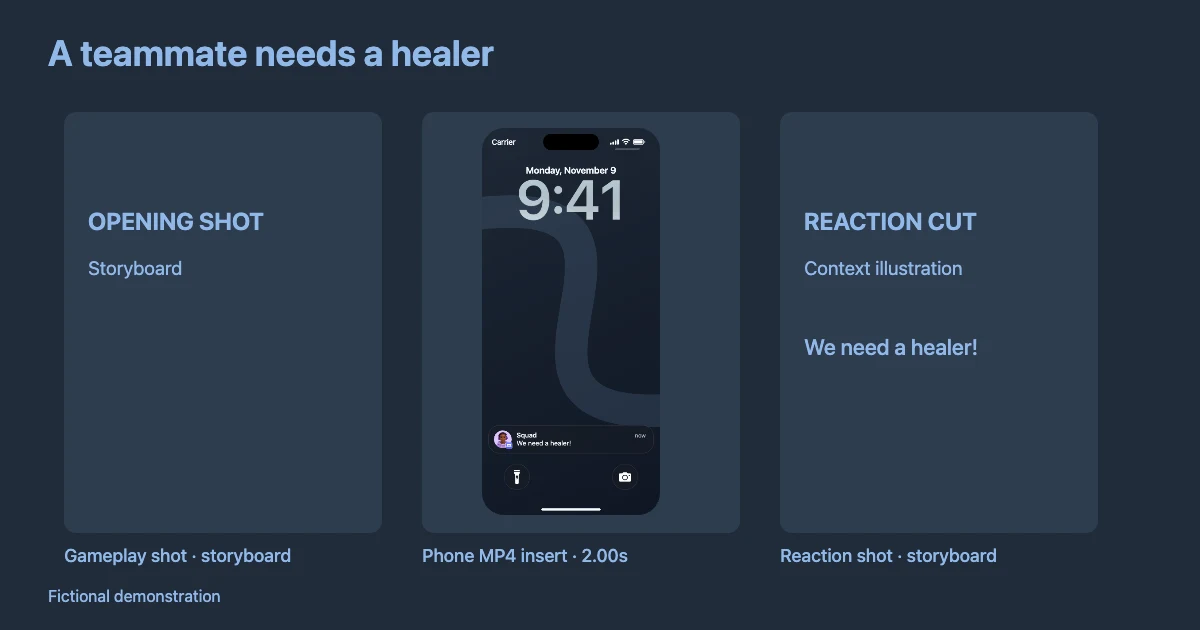
A Discord notification animation is a quick way to show an incoming message without cutting to a full chat application. In a gaming Short, that arrival can interrupt a tense moment, explain why a teammate is absent, or set up a punchline. It works especially well when the viewer recognizes the notification before the creator reacts.
This guide focuses on Discord notification video production rather than a static screenshot. It uses a simulated iPhone lock screen, fictional messages, and a video-editing timeline. Mocknotif's Discord tool creates the notification visual; a separate editor assembles it with gameplay footage, voice-over, or reaction shots.
Plan a notification sequence around the gameplay beat
Let's say the fictional character is about to start a competitive match. A message arrives at exactly the wrong moment:
| Edit time | Visual | Viewer effect |
|---|---|---|
| 0.0–1.3 s | Gameplay with a tense moment | Build context |
| 1.3 s | Cut to Discord DM: “Did you mute your mic?” | Distraction |
| 3.0 s | Second DM: “We can hear you singing.” | Reveal |
| 4.5–6.5 s | Cut back to gameplay and reaction | Payoff |
The Discord notification for YouTube Shorts is not necessarily visible for the full duration of the clip. A quick phone-screen insert may be stronger than leaving the simulated lock screen over gameplay continuously. Use short messages that are readable before the audience's attention returns to the game.
Build scripts with a clear relationship between what happens in the game and what appears on the phone. The notification should change the viewer's understanding of the scene, not repeat information that is already obvious.
Create and export the Discord lock-screen clip
Open the Discord notification editor and compose the fictional message or app update. For person-to-person text, use a contact-style layout with a sender name and an appropriately sourced avatar when supported. For a general activity announcement, use the Discord app icon rather than a personal photo.
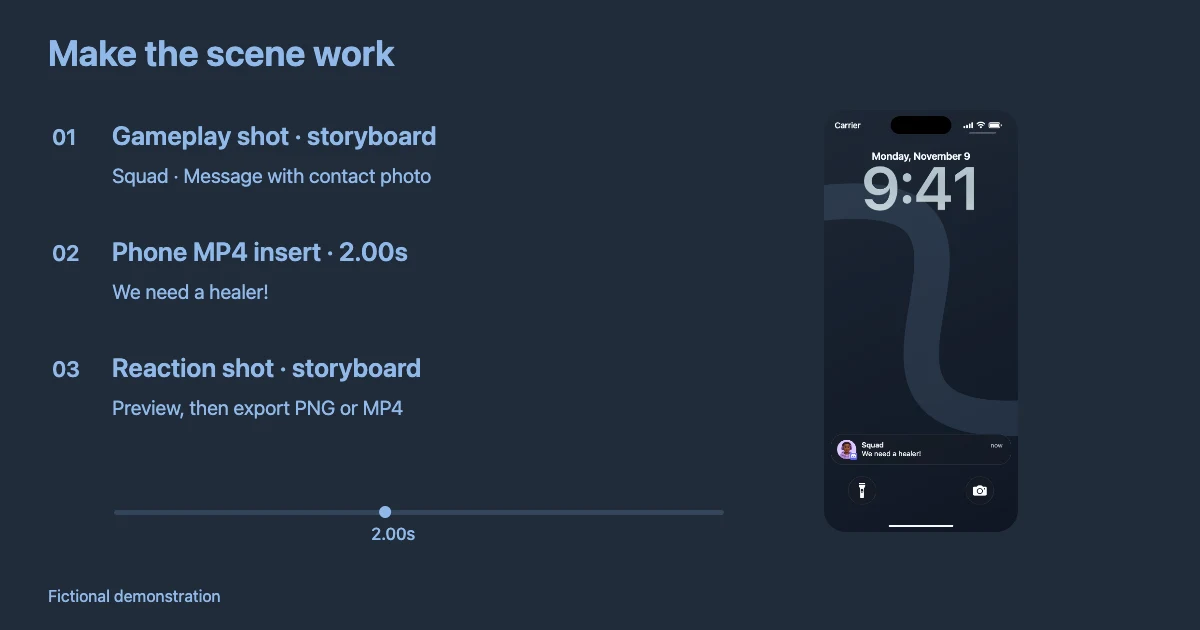
Set the notification arrival times in sequence. Preview the full shot: is the second message arriving too quickly? Do the cards overlap important words? Is the lock-screen wallpaper too bright? Export an MP4 once the reading rhythm feels natural. Export a separate PNG only when you need a still frame for a thumbnail or visual reference.
A full lock-screen MP4 is a scene asset, not automatically a transparent notification-only overlay. If you need the notification to float over gameplay, you must handle compositing in your video editor and should not promise transparent background support unless you have tested it.
Edit the notification into a vertical Short
Start with a 9:16 timeline in your editor. Import the phone-screen MP4, then place it between gameplay clips or beside your reaction shot. If you want the gameplay to remain visible, shrink and crop the phone scene thoughtfully—but don't crop off the sender or the punchline.
Keep the action legible on the smallest screen. When the notification first appears, the viewer should notice one thing: who sent it or what happened. A short zoom, a cut to the lock screen, or a simple pause can focus attention without adding distracting effects.
Use sound as support, not as the only source of meaning. A viewer scrolling with muted audio must still understand the message sequence. Avoid copyrighted notification sounds unless you have permission. For further post-production guidance, see how to use an iPhone notification clip in CapCut.
Two styles worth testing
Deadpan cutaway: Keep gameplay natural, abruptly cut to the DM, and return to a silent reaction. This suits subtle jokes and short suspense.
Message escalation: Use two or three quick notifications from the same fictional contact, then hold the final message. This suits a punchline that becomes more ridiculous with each arrival.
Both styles work best when the clip is designed around the actual notification timing. If you only need a single frame, a PNG may be faster and clearer than an animated video.
Make the result reusable for a series
Choose one wallpaper and one contact identity for recurring fictional characters. Save the script and timing notes in a small production checklist so future videos remain visually consistent. Vary the notification content and editing rhythm; otherwise every Short risks looking like the same template.
Separate direct-message scenes from server activity updates. For example, a DM can show a teammate with an avatar, while a fictional “Server event begins soon” activity notification can show Discord's app identity. If the scenario is a mention from an actual member, do not invent a message and imply it really happened; keep it clearly fictional or obtain permission.
A repeatable process is simple: draft the idea, create the lock-screen clip, insert it into the edit, and watch the finished Short on a phone. If the setup requires too much reading, remove words before adding more animation.
See the Discord DM notification mockup guide for avatar and sender choices, or the Discord server mention guide for educational app scenarios.
Frequently asked questions
Can I make Discord notifications appear without an actual Discord account?
Yes. A simulated notification clip is built from fictional content; it does not require live access to Discord or its notifications.
Will the exported video appear over gameplay automatically?
No. A lock-screen MP4 is a complete video clip. You need your video editor to place it in the sequence or composite it with other footage.
Is this for Discord desktop popups too?
This workflow focuses on an iPhone-style lock screen. A Discord desktop notification or full chat overlay is a different interface and should not be promised by the same tool.