A Discord DM notification mockup recreates the visual moment when a direct message arrives on an iPhone-style lock screen. It can be useful in a gaming skit, a video tutorial, an app presentation, or an original fictional story. You do not have to message a real Discord user or expose a personal conversation to get the shot.
For a fake Discord DM notification, the most important details are the fictional sender, a short message preview, and the timing of its arrival. Mocknotif's Discord notification maker can be used for this kind of visual scene and for exporting an image or animated video. It is not connected to your Discord account and does not send live notifications.
Start with a believable gaming scenario
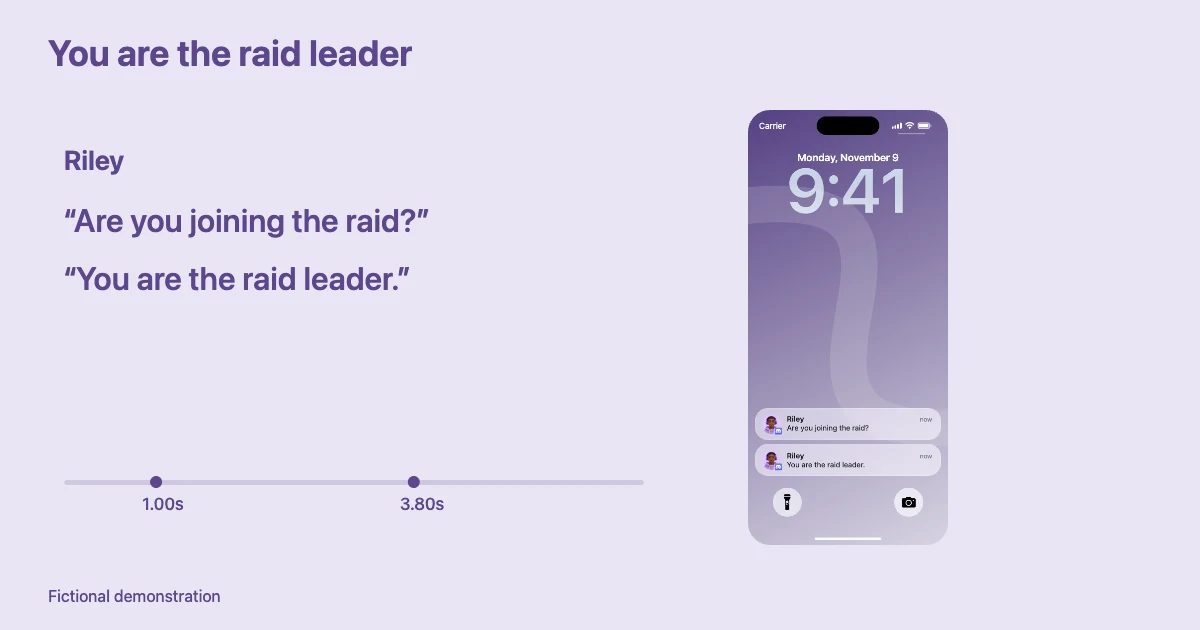
Imagine a fictional gaming group waiting for the last player to join:
| Screen moment | Sender | Notification text | Story purpose |
|---|---|---|---|
| 1.0 s | Riley | “Are you joining the raid?” | Establish context |
| 3.0 s | Riley | “We already started.” | Increase urgency |
| 5.8 s | Riley | “You're the raid leader.” | Punchline |
A Discord message notification screenshot of the last frame works as a thumbnail; an animated lock-screen sequence works better for a short skit. The text is deliberately brief because it needs to survive the small scale of a phone screen on social platforms.
Use invented handles or fictional usernames. Avoid copying a real community member's profile photo to suggest they sent a message they never wrote. If your video features a real community, get permission before using personal content.
Make the direct-message notification
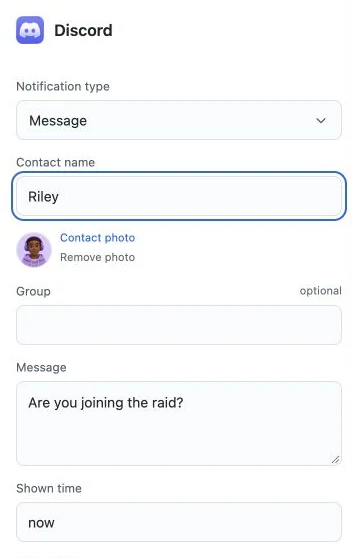
Open the Discord-specific Mocknotif tool and work with the Discord preset. For a DM, use the editor's message / chat type and set a sender name, message preview, and optional contact photo if the selected layout supports one. Reuse the same avatar when multiple alerts are from the same fictional sender; changing the face between messages can make viewers think someone new has joined.
Follow this workflow:
- Choose a readable iPhone lock-screen background.
- Keep the App fixed to Discord; do not add unrelated app brands unless the story explicitly needs another tool.
- Add a fictional DM sender and write a single short preview.
- Use a properly licensed or generated contact avatar if desired; otherwise use a neutral fallback.
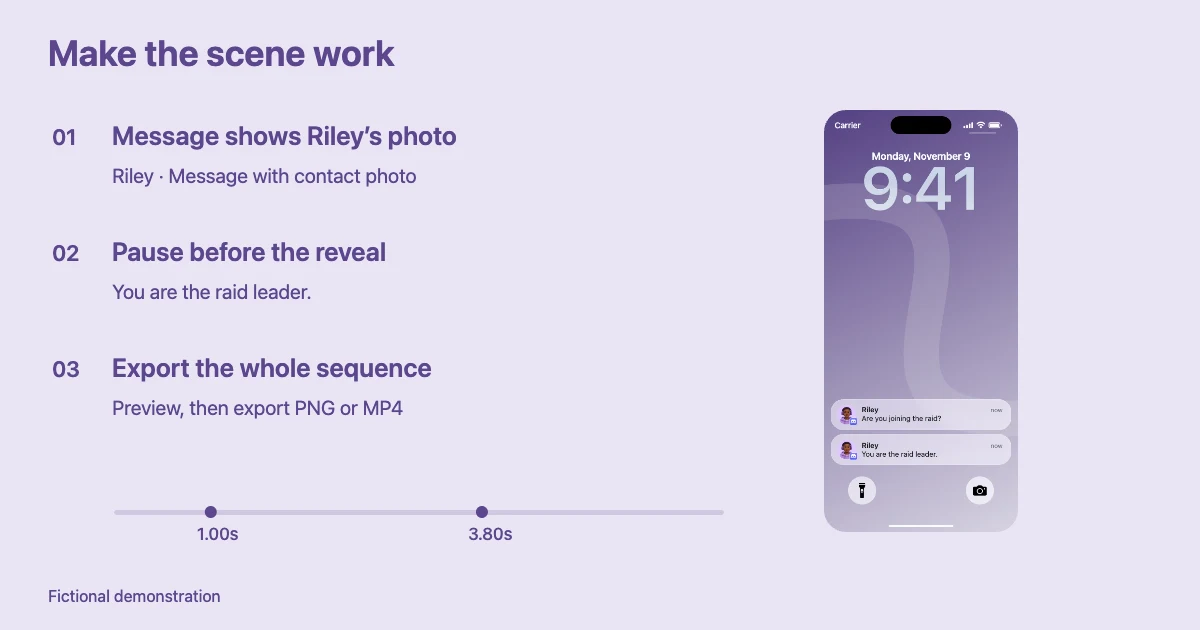
- Add a second message only if it changes the scene. Set its appearance after a readable pause.
- Play the preview, then export a PNG for a still or MP4 for a moving shot.
The Discord iPhone notification is a visual approximation. Actual notification presentation depends on Discord, iOS, privacy preview settings, and notification category. Apple's Human Interface Guidelines explain that communication notifications can visually emphasize contact images, whereas general app notifications may emphasize the app icon.
Distinguish a DM from a server activity alert
A direct message is primarily about a person talking to you. A general activity alert is about an event happening in the app or community. In an App-specific tool page, these should be separate example types—not two almost identical notifications with different words.
For a DM example, show “Riley: We need one more player” with a contact avatar. For a general app activity example, show a fictional announcement such as “Game Night starts in 10 minutes” with the Discord app icon and no contact photo. A channel mention may be treated like a message, depending on the app, so don't assume every mention should use the system-notification style.
This distinction is especially helpful when creating tutorials. Viewers can recognize whether the scene represents a person reaching out or an app notifying them of an event. It also makes the mockup more intentional than a generic screenshot generator.
Use the mockup in a tutorial or video
For YouTube Shorts, cut directly to the moving lock screen or place it beside a gameplay reaction shot. Keep the message legible for at least a comfortable reading interval. Use a full MP4 as a clip in the editor; a lock-screen scene should not be described as a transparent overlay.
For a static YouTube thumbnail or classroom slide, export a PNG. A neutral or dark wallpaper often works better for screen recordings than a detailed photo. If you are making a Discord tutorial, label the notification as a simulation and avoid implying that these are screenshots from a live user account.
For a production-oriented walkthrough, read how to animate Discord notifications for YouTube Shorts. To demonstrate a server mention rather than a private DM, see how to mock up Discord server mentions for tutorials.
Frequently asked questions
Can I make a Discord DM notification without joining a server?
Yes. A fictional visual notification does not require a live Discord account or server message.
Does the mockup show Discord's chat window?
No. The focus is the iPhone lock-screen notification and its arrival, not the full Discord desktop or mobile chat interface.
Should I add a profile picture to a Discord notification?
For a direct message, an avatar can help viewers recognize the fictional sender. For a general app activity alert, the Discord app icon is the more appropriate default. The exact appearance of a live notification may differ.